Clients
After server installation and server configuration, you can use the Web UI or run Nebula on devices:
- ncclient – Preferred method: device client for installation and usage (Docker, CLI, Linux desktop app, Windows app, NixOS). Enroll once, then ncclient polls for config and certs and can run Nebula.
- nebula – Manual alternative: create networks and nodes in the UI, then deploy config and certs yourself and run Nebula manually (e.g. when ncclient is not available, such as on mobile).
All of these assume the backend is running and reachable at the URL you configure.
1 - ncclient
ncclient is the preferred way to run Nebula Commander on devices: enroll once with a code from the UI, then ncclient polls for config and certificates and can run or restart Nebula when config changes. When you run the first lighthouse using the Docker client, you can use Magic DNS (split-horizon DNS) for the network.
- Installation – Docker (preferred for first lighthouse), binaries (Web UI or GitHub Releases), Linux desktop app (
.deb/.rpm/Flatpak), Windows Installer (MSI), NixOS module, or Pip (PyPI) as fallback. - Usage – One page per client (ncclient CLI, Docker, NixOS, Linux app, Windows app): enrolling, running, routes, DNS, and re-enrolling.
The CLI and both native GUI apps assume the Nebula Commander backend is running and reachable at the URL you configure.
1.1 - Installation
You can install ncclient in several ways. For Linux nodes other than lighthouses, the recommended method is the signed package repository at pkgs.nebulacommander.com (Linux Desktop App): it’s the only Linux install that can update itself automatically. For lighthouses, see Docker below.
| Method | Best for |
|---|
| Docker | The first lighthouse in a network, to also run Magic DNS |
| Binaries | Prebuilt CLI binaries from the Web UI or GitHub Releases |
| Linux Desktop App | Recommended for Linux nodes other than lighthouses. Background service (and optional GTK4 app) from the package repository, with automatic updates |
| Windows Installer | Windows: CLI, native app, and background service via one MSI |
| NixOS | NixOS hosts: a declarative services.ncclient module |
| Pip (PyPI) | Advanced users only, when none of the above are suitable |
Choose one and follow the linked page. Then see the matching Usage page to enroll the device, run it, and re-enroll it later.
1.1.1 - Docker
The Docker client is the preferred method for the first lighthouse in a network so the container can run dnsmasq and you can use Magic DNS (split-horizon DNS) for the network. Other devices (CLI, a native GUI app, or additional Docker clients) can then resolve Nebula hostnames via the lighthouse.
Image: ghcr.io/nixrtr/nebula-commander-ncclient:latest, or build from the repo client/docker (Dockerfile in that directory).
Required environment:
NEBULA_COMMANDER_SERVER – Base URL of your Nebula Commander backend (e.g. https://nc.example.com), no trailing slash.
Optional environment:
ENROLL_CODE – One-time enrollment code from the Nebula Commander UI (Nodes → Enroll for the node). Only used when the token file does not exist; after enrollment the token is stored and this is ignored.SERVE_DNS – Set to "true" to run dnsmasq on this node when it is a lighthouse, so the network can use Magic DNS. Omit or set to false if this node is not a lighthouse or you do not need DNS.NEBULA_DNS_POLL_INTERVAL – Seconds between dnsmasq config polls when this node is a lighthouse (default: 60).NEBULA_OUTPUT_DIR – Directory where ncclient writes Nebula config and certs inside the container. Set it to /data/nebula (the image default is /etc/nebula, outside the volume).NEBULA_DEVICE_TOKEN_FILE – Path to the device token file. Set it to /data/nebula-commander/token (the image default is /etc/nebula-commander/token, outside the volume).
Use a persistent volume for /data, and point both paths above into it, so the token and Nebula config/certs survive the container being recreated. The compose file uses network_mode: host so Nebula and dnsmasq can bind to the host, and cap_add: NET_ADMIN so Nebula can create and configure its tun interface.
Example (docker-compose):
services:
  ncclient:
    image: ghcr.io/nixrtr/nebula-commander-ncclient:latest
    network_mode: host
    cap_add:
      - NET_ADMIN
    restart: unless-stopped
    environment:
      NEBULA_COMMANDER_SERVER: "https://nc.example.com"
      ENROLL_CODE: "XXXXXXXX"   # one-time, from UI
      SERVE_DNS: "true"         # for first lighthouse + Magic DNS
      NEBULA_OUTPUT_DIR: "/data/nebula"
      NEBULA_DEVICE_TOKEN_FILE: "/data/nebula-commander/token"
    volumes:
      - ncclient-data:/data

volumes:
  ncclient-data:
    driver: local
Steps:
- In Nebula Commander, create a network and add a node for this device. Mark it as a lighthouse if this will be the first lighthouse and you want Magic DNS.
- Create or sign a certificate for the node, then click Enroll and copy the one-time code.
- Set
NEBULA_COMMANDER_SERVER and ENROLL_CODE (and SERVE_DNS: "true" for the first lighthouse), then start the container. - After enrollment, the container fetches config and certs and runs Nebula (and dnsmasq if
SERVE_DNS is set and the node is a lighthouse).
See Docker usage for logs, routes, DNS, and re-enrolling.
1.1.2 - Binaries
If Docker is not an option, use binaries from the Web UI or GitHub Releases.
From Web UI
When your Nebula Commander instance is deployed with client binaries included (for example the frontend image built with DOWNLOAD_BINARIES=1), the Web UI can serve them.
- Open your Nebula Commander URL in a browser and log in.
- Go to the downloads or client section (or open
https://YOUR_SERVER/downloads/ if your instance serves that path). - Download the binary for your platform:
- Linux x86_64:
ncclient-linux-amd64 - Linux ARM64:
ncclient-linux-arm64 - Windows x86_64:
ncclient-windows-amd64.exe - macOS Intel:
ncclient-macos-amd64 - macOS Apple Silicon:
ncclient-macos-arm64
- Place the file in a directory on your PATH (or add that directory to PATH). On Linux and macOS, make it executable:
chmod +x ncclient-linux-amd64 (or the file you downloaded).
If your instance does not serve binaries, use From releases or Pip (PyPI) instead.
From releases
Pre-built binaries are attached to GitHub Releases for each version.
- Open the releases page and choose a version (e.g. the latest).
- Download the file for your platform (same names as in From Web UI).
- Optionally verify with
SHA256SUMS.txt in the same release. - Place the binary in a directory on your PATH (or add that directory to PATH). On Linux and macOS, make it executable:
chmod +x ncclient-linux-amd64 (or the file you downloaded).
Next, see ncclient CLI usage to enroll and run it.
1.1.3 - Linux Desktop App
On Linux, three packages give you a GTK4/libadwaita desktop app plus a background systemd service that does the actual work - no group membership or relogin needed, and no admin/root prompt for enrolling, starting/stopping, or accepting routes.
| Light | Dark |
|---|
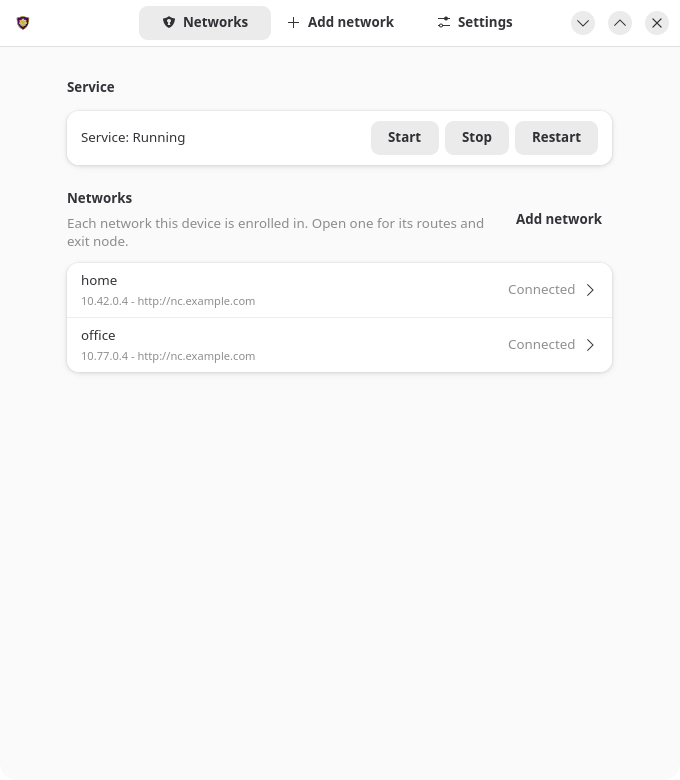 | 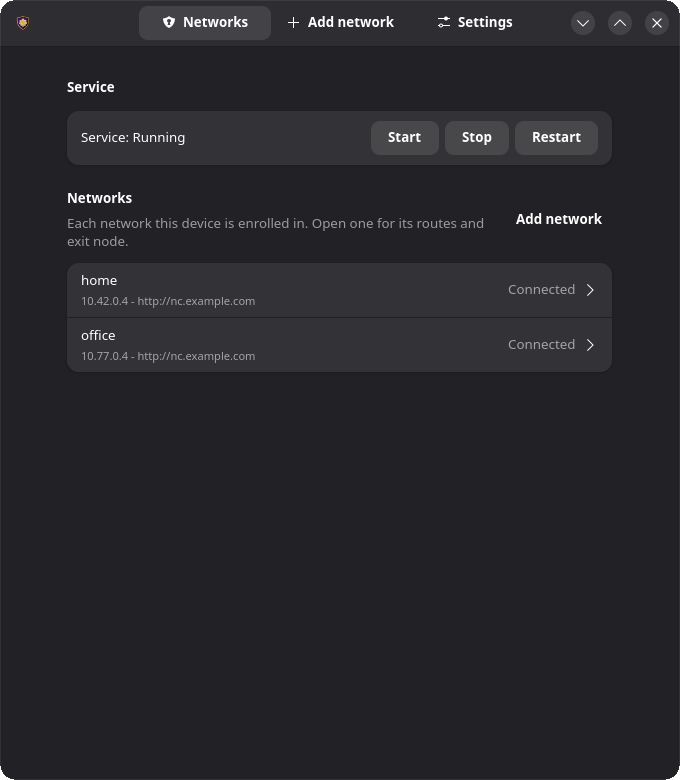 |
What’s included:
- nebula-commander-client – The
ncclient CLI (frozen binary, no Python runtime needed). - nebula-commander-service – Installs
ncclient.service (systemd), which polls for config/certs and runs Nebula as root. Exposes a system D-Bus API (org.beardedtek.NebulaCommander1) that the desktop app talks to, authorized per-call via polkit. - nebula-commander-desktop – The GTK4 app: enroll, view connection/service status, and accept or reject offered subnet routes and exit nodes.
Any user logged in at the machine can view status in the desktop app. Changes (enrolling, settings, routes, exit node, starting/stopping the service) need no password for members of the sudo or wheel group, which administrators normally already are, and an administrator’s password for everyone else.
Package repository (recommended)
This is the recommended way to install the client on Linux nodes other than lighthouses (for lighthouses, see Docker). Installing from the repository is what makes automatic updates possible: once you turn them on (sudo ncclient auto-update enable, or Settings → Updates in the app), the client upgrades itself during a daily window. Without the repository, a .deb or .rpm can’t update itself.
Add the signed Nebula Commander repository once, and new releases also arrive with your normal system updates (apt upgrade, dnf upgrade, zypper update). It carries the current and the previous few releases, for amd64 and arm64. Installing nebula-commander-desktop and nebula-commander-service pulls in nebula-commander-client.
Debian / Ubuntu:
sudo apt install -y curl
sudo install -d -m 0755 /etc/apt/keyrings
sudo curl -fsSL -o /etc/apt/keyrings/nebula-commander.asc https://pkgs.nebulacommander.com/gpg.key
sudo curl -fsSL -o /etc/apt/sources.list.d/nebula-commander.sources https://pkgs.nebulacommander.com/deb/nebula-commander.sources
sudo apt update
sudo apt install nebula-commander-desktop nebula-commander-service
Fedora / RHEL:
sudo curl -fsSL -o /etc/yum.repos.d/nebula-commander.repo https://pkgs.nebulacommander.com/rpm/nebula-commander.repo
sudo dnf install nebula-commander-desktop nebula-commander-service
openSUSE:
sudo zypper addrepo https://pkgs.nebulacommander.com/rpm/nebula-commander.repo
sudo zypper install nebula-commander-desktop nebula-commander-service
On a server without a desktop, install just nebula-commander-service. The repository metadata and the RPMs are signed with the key at pkgs.nebulacommander.com/gpg.key.
The packages below can also be installed directly, without adding the repository.
.deb (Debian, Ubuntu, and derivatives)
Download all three packages from the Client Download page or GitHub Releases, then install together so apt resolves the dependency order:
sudo apt install ./nebula-commander-client.deb ./nebula-commander-service.deb ./nebula-commander-desktop.deb
.rpm (Fedora, RHEL, and derivatives)
sudo dnf install ./nebula-commander-client.rpm ./nebula-commander-service.rpm ./nebula-commander-desktop.rpm
On openSUSE, use zypper instead:
sudo zypper install ./nebula-commander-*.rpm
Flatpak
The desktop app is also available as a Flatpak bundle. It is not yet published on Flathub, so install the bundle directly:
flatpak install --user ./org.beardedtek.NebulaCommander.flatpak
The Flatpak is the GUI only - it still needs nebula-commander-service (or an equivalent backend, such as the NixOS module) installed and running separately, since a sandboxed Flatpak cannot run Nebula or create a TUN device itself.
After install
- Open Nebula Commander from your application launcher.
- Go to the Enrollment tab and enter the server URL and the one-time code from Nebula Commander (Nodes → open the node → Enroll).
- The Status tab shows connection/service state and lets you start/stop/restart the service, view the generated
config.yaml, and accept or reject offered subnet routes and exit nodes.
See Linux App usage for day-to-day use, headless (service-only) setup, and re-enrolling, or Development: Manual builds to build these packages yourself.
1.1.4 - Windows Installer
On Windows the MSI installer sets up the ncclient CLI, a native windowed app, and a background Windows Service that does the actual work as LocalSystem. Any user can view status in the app; enrolling, changing settings or routes, and starting/stopping the service require running the app as administrator.
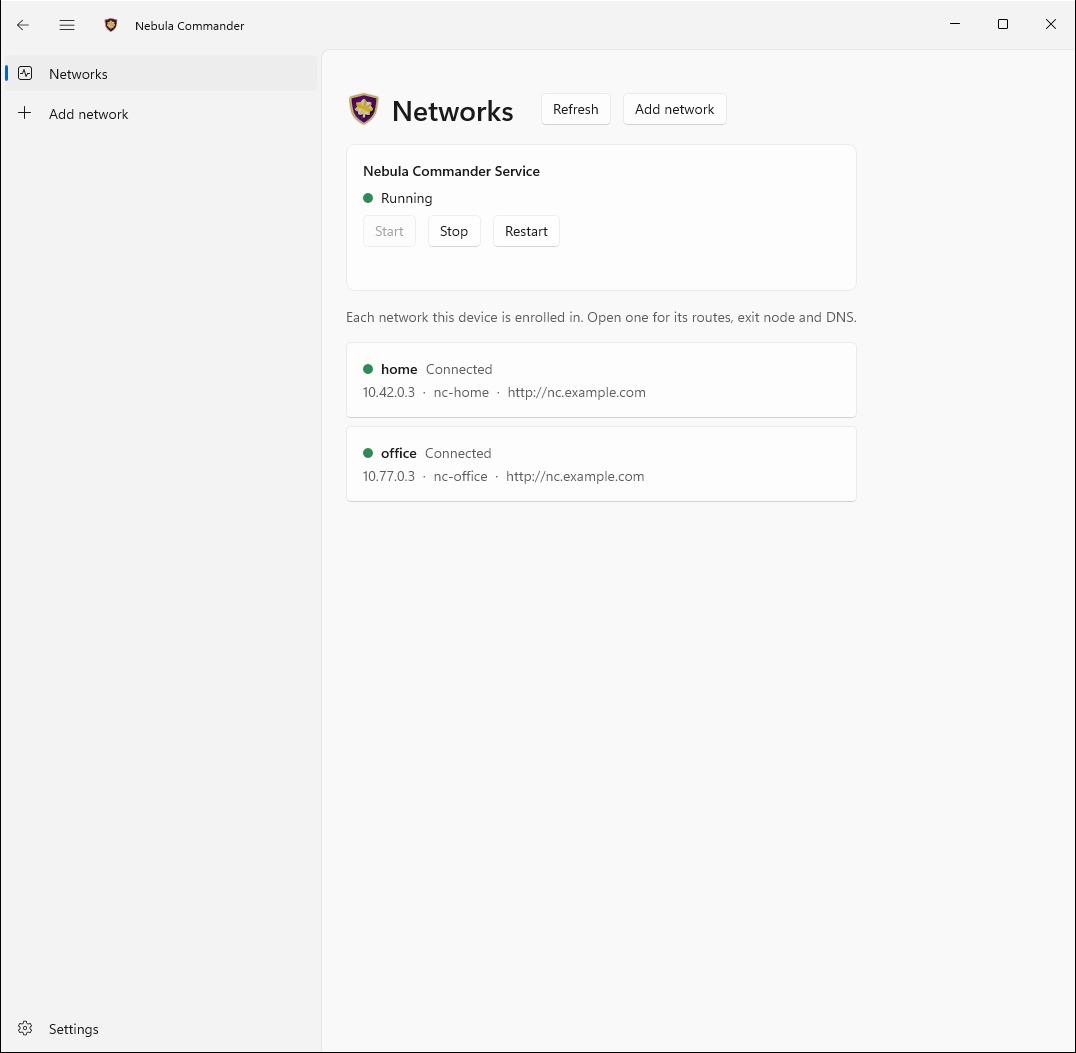
What the installer includes:
- ncclient – CLI for enrollment and daemon (poll for config/certs, run or restart Nebula).
- Nebula Commander (WinUI 3) – The windowed desktop app: side tabs for Status, Enrollment, and Settings, minimizes to the tray on close. Talks to the background service.
- ncclient-service – The
NebulaCommanderService Windows Service that polls for config/certs and runs Nebula as LocalSystem. Starts automatically at boot; the app talks to it over a local named pipe.
All three are installed to %ProgramFiles%\Nebula Commander\. The installer can add that directory to PATH, creates Start Menu shortcuts, and registers/starts the service.
Getting the installer:
- Download
NebulaCommander-windows-amd64.msi from the GitHub Releases page for the version you want. - Use
SHA256SUMS.txt in the same release to verify the file.
After install:
- Open Nebula Commander from the Start Menu, choose Relaunch as administrator, and use the Enrollment tab: paste the server URL and the one-time code from Nebula Commander (Nodes → open the node → Enroll). This is the recommended way to enroll after an MSI install - the service stores the token in its protected folder (
%ProgramData%\nebula-commander\) and fetches config immediately. (The CLI’s ncclient enroll writes to a separate per-user location the service does not read from, so avoid it for MSI installs unless you’ve explicitly redirected NEBULA_COMMANDER_CONFIG_DIR.) - The service starts polling automatically once enrolled - nothing else to run. On first start it also downloads and verifies Nebula itself. As administrator, use the app’s Start/Stop/Restart Service controls on the Status tab, and Settings to change server URL, poll interval, or enable split-horizon DNS. See Windows App usage for details, including re-enrolling.
For building the MSI yourself, see Development: Manual builds.
1.1.5 - NixOS
A services.ncclient module runs ncclient declaratively as a systemd service — an alternative to the Docker image, the Windows service, or a hand-written unit (see ncclient CLI: Run as a service). It’s exposed by the same flake.nix as the server module, as nixosModules.client.
{
  inputs.nebula-commander.url = "github:NixRTR/nebula-commander";

  outputs = { self, nixpkgs, nebula-commander, ... }: {
    nixosConfigurations.yourHost = nixpkgs.lib.nixosSystem {
      system = "x86_64-linux";
      modules = [
        ./configuration.nix
        nebula-commander.nixosModules.client
      ];
    };
  };
}
Or import nix/client-module.nix directly by path if you’re not using a flake, the same way the server module can be.
services.ncclient = {
  enable = true;
  server = "https://nebula.example.com";
  # One-time enrollment: a file holding the enrollment code, used once (the unit
  # records that the network is enrolled and doesn't send the code again).
  enrollCodeFile = "/run/secrets/ncclient-enroll-code";
  acceptDns = true;
};
Then rebuild: nixos-rebuild switch (path-based) or nixos-rebuild switch --flake .#yourHost. See NixOS usage for controlling the service, running ncclient commands, and re-enrolling.
| Option | Type | Default | Description |
|---|
enable | bool | — | Enable the ncclient service |
package | package | built from nix/client-package.nix | The ncclient package |
nebulaPackage | package | pkgs.nebula | Package providing the nebula/nebula-cert binaries ncclient orchestrates |
server | null or string | null | Nebula Commander server URL, for a device in one network. With several networks use networks instead. |
enrollCodeFile | null or path | null | Path to a file containing a one-time enrollment code for server. A oneshot unit runs ncclient enroll once, before the main service starts, and records that it did (same as networks.default). Leave null to enroll by hand or provision the token out of band. |
networks | attribute set of { server; enrollCodeFile; } | { } | From v0.8.0: networks this device joins, each with its own server and code file, enrolled once each. Removing an entry doesn’t leave the network; use ncclient networks remove. See Several networks. |
interval | int | 60 | Poll interval in seconds |
outputDir | string | /var/lib/ncclient/nebula | Directory ncclient writes Nebula’s config/certs/binary to |
acceptDns | bool | false | Accept and apply DNS settings pushed by Nebula Commander |
adminGroups | null or list of strings | [ "wheel" "sudo" ] | Active local users in these groups may change the device (desktop app enrollment, settings, routes, exit node; start/stop/restart ncclient.service) without a password. Everyone else needs an administrator’s password. null lets any active local user do it (single-user machines only). |
stateDir | string | /var/lib/ncclient | Directory holding the device tokens and settings.json together on the same persistent path — both must live in the same place or the node’s identity is lost on restart even though the token survives |
The service runs as root, matching the Windows Service (LocalSystem) and Docker image (root-in-container) precedent above — Nebula needs to create a TUN device. --nebula/--restart-service are intentionally not exposed; nebula is resolved via PATH (from nebulaPackage), matching the Docker image’s approach.
Desktop app
On a NixOS desktop, you can add the Linux desktop app alongside the service with the nixosModules.client-desktop module (or nix/client-desktop-module.nix by path):
modules = [
  ./configuration.nix
  nebula-commander.nixosModules.client
  nebula-commander.nixosModules.client-desktop
];
services.ncclient.enable = true;          # the service the app controls
services.ncclient-desktop.enable = true;  # adds "Nebula Commander" to the app launcher
| Option | Type | Default | Description |
|---|
enable | bool | — | Install the Nebula Commander desktop app (GTK4/libadwaita) |
package | package | built from nix/client-desktop-package.nix | The desktop app package |
The desktop module installs the app and turns on security.polkit.enable (as a default you can override), since every request the app makes is authorized by polkit. services.ncclient registers the D-Bus policy and polkit rules the app needs. Any user in an active local session can view status; members of adminGroups (default wheel/sudo) can enroll, change settings, accept routes, and start/stop/restart ncclient.service without a password prompt, and everyone else needs an administrator’s password.
1.1.6 - Pip (PyPI)
For advanced users only. Pip is the most delicate way to install ncclient. It’s easy to end up with a setup that sudo can’t find, that root can’t safely run, or that stores the token somewhere the service doesn’t look. Use the Linux packages, the Windows installer, Docker, or the binaries unless you need to run from source or none of those fit.
From PyPI:
pip install nebula-commander
Requires Python 3.10+. This installs the ncclient command.
From source (repo clone):
cd nebula-commander
pip install -r client/requirements.txt
Then run as python -m client --server URL enroll --code XXX, or install the client in development mode to get the ncclient command:
cd client
pip install -e .
Linux
On Debian, Ubuntu, Fedora, and openSUSE, the packages are easier: they install a service that manages all of this for you. Use pip when packages aren’t an option.
On Linux, ncclient runs as root (Nebula needs root to create its TUN interface), so install it where root owns it and sudo can find it. Don’t point the service at a virtualenv in your home directory. Anything your user can modify would then run as root.
sudo python3 -m venv /opt/ncclient
sudo /opt/ncclient/bin/pip install nebula-commander
sudo ln -s /opt/ncclient/bin/ncclient /usr/local/bin/ncclient
This also works on distributions where a plain sudo pip install is blocked (“externally-managed-environment”). To upgrade later, run sudo /opt/ncclient/bin/pip install --upgrade nebula-commander, then sudo systemctl restart ncclient.
If sudo ncclient says command not found, your distribution’s sudo doesn’t include /usr/local/bin in its PATH (RHEL and its rebuilds). Use the rpm package there instead.
Next, follow Linux setup: enroll as root, then install the service.
Next, see ncclient CLI usage to enroll and run it.
1.2 - ncclient Usage
After installing ncclient, follow the page for the client you installed. Each one covers enrolling, day-to-day control, subnet routes and exit nodes, split-horizon DNS, re-enrolling, and troubleshooting.
Concepts shared by every client
Enrollment
A device joins Nebula Commander by enrolling with a one-time code:
- In Nebula Commander, open Nodes, select the node for this device, and click Enroll.
- Copy the code. It works once and expires if unused.
- Give the code to the client (how depends on the client, see its page).
Enrolling stores a device token and the node’s ID on the device. From v0.8.0 a device can enroll in several networks, one code each; see Several networks on one device. From then on the client uses the token to fetch the node’s Nebula config and certificates, and reports a heartbeat so the node shows as online.
Re-enrolling
Re-enroll when a device’s token was lost or revoked, when you want the device to become a different node, or when moving it to another Nebula Commander server. Generate a new code (the old one is already used up) and enroll again.
Enrolling a node again invalidates that node’s previous token on the server. A running client notices on its next poll (it gets a 401), then picks up the new token from disk without a restart. From v0.8.0, a code for the same node on the same server replaces that network’s token, while a code from a different server (or a different node) adds a network next to the old one; remove the old one afterwards. The per-client pages spell out the exact steps, and a couple of clients (Docker and the NixOS module) need an extra step first.
When the server moves
From v0.9.0, when an admin moves Nebula Commander to a new address, devices follow
on their own after a waiting period (at least 1 hour, or 24 hours to another domain
or an IP) and a few checks, with no re-enrollment. The device shows “Moving to …”
meanwhile. See Move server, including how to
limit this on a device with move_policy.
Subnet routes, exit nodes, and DNS
- A subnet router or exit node assigned to a node is only offered to it. Each device has to accept it before using it.
- Split-horizon DNS is served by lighthouses (usually the Docker client with
SERVE_DNS). Other devices opt in to resolving through it.
Each client page shows how to do both.
1.2.1 - ncclient CLI
This page covers the plain ncclient command from the binaries or Pip, run by hand or under your own init system. If you installed the Linux packages, the Windows MSI, or the NixOS module, use the Linux App, Windows App, or NixOS page instead. Those set up a background service that keeps its state somewhere the plain CLI doesn’t look.
Where state lives
| What | Default location |
|---|
| Device tokens (one per network) | The OS keyring, when there is a usable one (normally only in a logged-in desktop session). Otherwise files in ~/.nebula/tokens/, readable only by their owner. That’s what root, servers, SSH sessions, and the frozen binaries get. Set NEBULA_DEVICE_TOKEN_FILE to a file path, and the tokens go in a tokens/ folder next to it. |
settings.json (each network’s server, node ID, accepted routes) | ~/.config/nebula-commander/ on Linux and macOS, %APPDATA%\nebula-commander\ on Windows. Set NEBULA_COMMANDER_CONFIG_DIR to change it. |
| Nebula config and certificates | networks/<id>/ under the output directory: /etc/nebula on Linux and macOS, %USERPROFILE%\.nebula on Windows. Set with --output-dir. |
Before v0.8.0 there was one token (~/.nebula/device-token) and the Nebula files were directly in the output directory. ncclient moves them into this layout the first time v0.8.0 or newer runs.
~ is the home directory of whoever runs the command, so sudo ncclient … uses root’s (/root/.nebula/device-token). Run enroll, run, and routes as the same user (and with the same environment variables), or they won’t find each other’s files.
Linux setup
On Linux the client has to run as root, because Nebula needs root to create its TUN interface. Do every step as root, in this order:
Enroll as root. In Nebula Commander, open Nodes, select the node, click Enroll, and copy the code. Then:
sudo ncclient enroll --server https://YOUR_NEBULA_COMMANDER_URL --code XXXXXXXX
Install the service. This writes a systemd unit that runs ncclient run as root, enables it, and offers to start it (see Run as a service for the prompts and options):
Check that it’s running. From now on the service is the client; don’t also start ncclient run by hand.
systemctl status ncclient
sudo journalctl -u ncclient -f
Keep using sudo for everything else (sudo ncclient routes …, re-enrolling). Run as a regular user, ncclient reads that user’s own (empty) token and settings instead of the service’s, so it either says you’re not enrolled or changes nothing the service sees. As a regular user you can still check systemctl status ncclient.
If you installed with pip into a virtualenv, sudo ncclient may say command not found, because sudo resets PATH. See Pip: Linux for a setup that works with sudo.
Linux servers on 0.7.0 and earlier
enroll crashes with keyring.errors.KeyringLocked or NoKeyringError on a machine with no unlocked desktop keyring, which is most servers and anything run with sudo. The code is used up by then, so get a new one. This is fixed in 0.7.1. If you can’t upgrade yet, set the token file explicitly for enroll (and for run, if you run it by hand):
sudo NEBULA_DEVICE_TOKEN_FILE=/root/.nebula/device-token ncclient enroll --server https://YOUR_NEBULA_COMMANDER_URL --code XXXXXXXX
Enroll
- In Nebula Commander, open Nodes, select the node for this device, and click Enroll.
- Copy the enrollment code.
- On the device, as the user that will run the daemon (root on Linux, see Linux setup):
sudo ncclient enroll --server https://YOUR_NEBULA_COMMANDER_URL --code XXXXXXXX
Run enroll again with a code from another network to add that network; one run handles all of them. List them with sudo ncclient networks list, and leave one with sudo ncclient networks remove NAME. See Several networks on one device.
Run (daemon)
After enrollment, run ncclient so it periodically pulls config and certificates and runs or restarts Nebula:
sudo ncclient run --server https://YOUR_NEBULA_COMMANDER_URL
Defaults: poll every 60 seconds, write files to /etc/nebula (or ~/.nebula on Windows), and start or restart Nebula from PATH when config changes. --server can be left out once you’ve enrolled; ncclient uses the server saved in settings.json, or NEBULA_COMMANDER_SERVER.
Linux: creating the Nebula TUN device requires root, so run run with sudo. Running it by hand like this is useful for testing. For normal use, install the service instead, and don’t run both at once.
Options
| Option | Description |
|---|
--output-dir DIR | Where to write config.yaml, ca.crt, host.crt (default: /etc/nebula on Linux/macOS, ~/.nebula on Windows) |
--interval N | Poll interval in seconds (default: 60) |
--nebula PATH | Path to the nebula binary if it is not on PATH |
--restart-service NAME | Instead of running nebula directly, restart this systemd service (e.g. nebula). Use only one of --nebula or --restart-service. |
--accept-dns | Apply split-horizon DNS. See Split-horizon DNS. |
Example with nebula in a non-standard location:
sudo ncclient run --server https://nc.example.com --nebula /usr/local/bin/nebula
Example using systemd to run Nebula (ncclient only restarts the service):
sudo ncclient run --server https://nc.example.com --restart-service nebula
Certificates: if the cert was created via the server (Create certificate in the UI), the bundle includes host.key. If it was signed (Sign flow), the server doesn’t have the key, so put your host.key in the output directory.
Run as a service
Linux (ncclient install)
This is step 2 of Linux setup. It checks that root is enrolled (if not, it prints the ncclient enroll … command to run first). It then prompts for the server URL and options, writes /etc/default/ncclient and /etc/systemd/system/ncclient.service, and enables (and optionally starts) the service. The unit runs ncclient run as root.
- Use
--no-start to enable without starting. - Use
--non-interactive with NEBULA_COMMANDER_SERVER (and optional env vars) set for scripting.
Current limitation
Of the values ncclient install writes to /etc/default/ncclient, only NEBULA_COMMANDER_SERVER currently takes effect. The service runs with the default output directory (/etc/nebula), interval, and nebula from PATH. To change those, add the flags to ExecStart with sudo systemctl edit --full ncclient.
Day-to-day:
sudo systemctl status ncclient
sudo systemctl restart ncclient
journalctl -u ncclient -f
Run ncclient run under your init system (launchd on macOS, Task Scheduler or NSSM on Windows). Example configs are in the repo under client/examples/. See README-startup.md for step-by-step setup on macOS and Windows. On Windows, the MSI’s service is usually the easier option.
Subnet routes and exit nodes
A subnet router or exit node that an admin assigns to this node is only offered to it. It isn’t used until you accept it on the device. Use ncclient routes, as the same user as run and with the same --output-dir:
sudo ncclient routes list                              # offered routes, and which are accepted
sudo ncclient routes accept 192.168.1.0/24             # add --via <IP> if several gateways offer it
sudo ncclient routes reject 192.168.1.0/24
sudo ncclient routes accept-exit-node --via 10.100.0.1   # --block-lan: LAN through it too
sudo ncclient routes exit-lan allow|block                # local network direct (default) or via the exit node
sudo ncclient routes reject-exit-node
You can accept several subnet routes as long as they don’t overlap, and at most one exit node, across all networks on the device. The running daemon picks up changes on its next poll; no restart needed.
With several networks, say which one with --network NAME (name or id from ncclient networks list) before the subcommand: sudo ncclient routes --network office list.
An exit node carries all of the device’s traffic. From v0.7.2, ncclient keeps Nebula’s own traffic out of the tunnel, blocks IPv6 the gateway can’t route, and on Linux drops internet traffic while Nebula is down instead of letting it bypass the tunnel. See Using an exit node.
Split-horizon DNS
When the server has DNS enabled for the network, pass --accept-dns to run. ncclient then fetches the DNS config (domain and lighthouse IPs) and configures the host to resolve the Nebula domain via the network’s DNS. On Linux the client detects how the host manages DNS and configures it to match:
- systemd-resolved (on its own, or behind NetworkManager): per-link DNS on the Nebula interface, so only the Nebula domain goes to its servers.
- NetworkManager without systemd-resolved (e.g. Debian desktops): NetworkManager’s dnsmasq plugin with a rule for the Nebula domain. If NetworkManager is writing
/etc/resolv.conf itself, the client switches it to the plugin; that needs dnsmasq (Debian: dnsmasq-base) installed. - A standalone dnsmasq service: a rule in
/etc/dnsmasq.d/. - Plain
/etc/resolv.conf: last resort, not true split-horizon.
It also keeps NetworkManager from taking over the Nebula interface, re-checks the DNS on every poll (re-applying it if something undid it), and removes everything when it stops or DNS is turned off. If none of these can work, the client logs why and what to install. On Windows it uses NRPT. Applying DNS needs root (Linux) or Administrator (Windows). To remove the DNS override, stop ncclient normally (e.g. Ctrl+C or systemctl stop).
Re-enroll
Get a new code from Nodes → Enroll, then run enroll again as the same user, with the same environment variables as the daemon:
sudo ncclient enroll --server https://YOUR_NEBULA_COMMANDER_URL --code NEWCODE
With a code for the same node on the same server, this overwrites that network’s token. The running daemon switches to the new token on its next poll.
A code for a different node or server adds a network instead. If you’re moving the device, remove the old network afterwards with sudo ncclient networks remove NAME, and update NEBULA_COMMANDER_SERVER in /etc/default/ncclient for an ncclient install service.
If enroll succeeds but the daemon keeps logging Token invalid or expired, the two are using different token locations (usually one ran with sudo and the other didn’t). See Where state lives.
Troubleshooting
- No TUN device / cannot ping Nebula IP: on Linux, run with
sudo. For the Sign flow, make sure host.key is in the output directory. Check Nebula’s error output (e.g. “failed to get tun device”, “no such file”). - Nebula starts then exits: often a missing
host.key (Sign flow), a wrong config path, or on Linux not running as root. Check the Nebula lines ncclient prints. Token not found. Run 'ncclient enroll' first.: this user has no token. Enroll as the same user that runs the daemon (root, on Linux).Use --network <name or id>: the device is in several networks, so the command needs to know which one. Add --network NAME before the subcommand.enroll fails with KeyringLocked or NoKeyringError (0.7.0 and earlier): see the Linux setup note. Get a new code, since the old one was used.
macOS notes
Default output dir: /etc/nebula; for non-root use --output-dir ~/.nebula. Nebula: use PATH or --nebula /opt/homebrew/bin/nebula (Apple Silicon) or /usr/local/bin/nebula (Intel). Don’t use --restart-service; use launchd for background runs.
Windows notes
Default output dir: %USERPROFILE%\.nebula. Use --nebula if nebula.exe is not on PATH. Don’t use --restart-service. The plain CLI’s token and settings are separate from the shared %ProgramData%\nebula-commander\ location used by the MSI’s app and service. If you installed the MSI, use the Windows App to enroll instead.
1.2.2 - Docker
The Docker client runs ncclient, Nebula, and (on lighthouses) dnsmasq in one container. See Docker installation for the image and a full docker-compose.yml. The commands below assume that compose file, with the service named ncclient, run from the directory that holds it.
Where state lives
Everything that must survive a container recreate lives in the /data volume, as long as the compose file sets these two paths (the example does):
NEBULA_OUTPUT_DIR: "/data/nebula"
NEBULA_DEVICE_TOKEN_FILE: "/data/nebula-commander/token"
| Path in the container | What it is |
|---|
/data/nebula-commander/tokens/ | Device token (from v0.8.0, one file per network, named by its id) |
/data/nebula-commander/settings.json | Server URL, node ID, accepted routes |
/data/nebula/networks/<id>/ | Nebula config.yaml, certificates, status |
Before v0.8.0 the token was /data/nebula-commander/token and the Nebula files were directly in /data/nebula/. The container moves them into this layout on its first start with v0.8.0 or newer; the variables stay the same.
A container runs one network. To put the host in a second network, run a second container with its own volume. Every ncclient on the host must then be v0.8.0 or newer; see Several networks on one device.
Without those two variables the image falls back to /etc/nebula and /etc/nebula-commander/token. Those paths are outside the volume, so the device loses its enrollment every time the container is recreated.
Enroll
In Nebula Commander, create or sign a certificate for the node, then click Enroll and copy the code.
Set ENROLL_CODE in the compose file and start the container:
docker compose up -d
docker compose logs -f ncclient
The container enrolls once, when it has no token yet. After that, ENROLL_CODE is ignored and you can remove it.
Run and control
The container starts ncclient on its own and restarts with Docker (restart: unless-stopped).
docker compose logs -f ncclient     # ncclient, Nebula, and dnsmasq output
docker compose restart ncclient     # restart everything in the container
docker compose down                 # stop (the volume and enrollment are kept)
docker compose up -d again after editing the compose file.
Subnet routes and exit nodes
Run ncclient routes inside the container. Pass NEBULA_COMMANDER_CONFIG_DIR so the command sees the same settings.json as the running client, and --output-dir so it sees the routes offered to the node:
docker compose exec -e NEBULA_COMMANDER_CONFIG_DIR=/data/nebula-commander ncclient \
  ncclient routes --output-dir /data/nebula list

docker compose exec -e NEBULA_COMMANDER_CONFIG_DIR=/data/nebula-commander ncclient \
  ncclient routes --output-dir /data/nebula accept 192.168.1.0/24
reject, accept-exit-node --via <IP>, and reject-exit-node work the same way (see the ncclient CLI page). The running client applies changes on its next poll. --output-dir stays /data/nebula; ncclient finds the network’s own folder under it.
Split-horizon DNS
The Docker client is how a lighthouse serves Magic DNS. Set SERVE_DNS: "true". When the node is a lighthouse and DNS is enabled for the network, the container polls for the dnsmasq config (every NEBULA_DNS_POLL_INTERVAL seconds, default 60) and runs dnsmasq on the node’s Nebula IP, port 53. On non-lighthouses dnsmasq stays off.
The container does not apply split-horizon DNS to the host it runs on (it doesn’t pass --accept-dns). To resolve Nebula names on that host too, point its resolver at the lighthouse IP yourself.
Re-enroll
The container only uses ENROLL_CODE when no token exists. There are two ways to re-enroll.
Enroll inside the running container. For a new code for the same node on the same server. No restart needed:
docker compose exec -e NEBULA_COMMANDER_CONFIG_DIR=/data/nebula-commander ncclient \
  ncclient enroll --code NEWCODE
The server URL comes from NEBULA_COMMANDER_SERVER. With a new code for the same node, the old token is replaced, and the client switches to the new one on its next poll. A code for a different node or server would add a second network to the container instead; use the second method for that.
Or leave the network and let the container enroll on start:
docker compose exec -e NEBULA_COMMANDER_CONFIG_DIR=/data/nebula-commander ncclient \
  ncclient networks --output-dir /data/nebula list            # note the network's name or id
docker compose exec -e NEBULA_COMMANDER_CONFIG_DIR=/data/nebula-commander ncclient \
  ncclient networks --output-dir /data/nebula remove NAME
# set ENROLL_CODE to the new code in docker-compose.yml, then:
docker compose up -d --force-recreate
docker compose logs -f ncclient
To move to a different server or make the container a different node, use the second method, and change NEBULA_COMMANDER_SERVER along with ENROLL_CODE before recreating.
Troubleshooting
Token file not found and ENROLL_CODE not set: the container has no token and nothing to enroll with. Set ENROLL_CODE, or check that the volume is mounted and the token path points into it.- The device keeps asking to enroll after every recreate: the token path isn’t in the volume. See Where state lives.
Revoked, deleted, or re-enrolled elsewhere - Nebula stopped. Enroll again to reconnect.: the device was revoked, deleted, or re-enrolled elsewhere; Nebula was stopped and its config and key removed. Re-enroll it with a new code.- Nebula can’t create its tun device: the container needs
network_mode: host and cap_add: NET_ADMIN. It also needs rootful Docker. Under rootless Docker or Podman, “host” networking is a private namespace owned by an unprivileged user, so Nebula can’t configure the real host’s network and inbound UDP never reaches it. - dnsmasq never starts: check
SERVE_DNS is set, the node is a lighthouse, and DNS is enabled for the network. The logs show Warning: listen-address … not assigned if Nebula’s interface never came up.
1.2.3 - NixOS
This page covers day-to-day use of the services.ncclient module. See NixOS installation for importing the module and its full option list. Paths below use the defaults (stateDir = "/var/lib/ncclient", outputDir = "/var/lib/ncclient/nebula"); adjust them if you changed those options.
What the module sets up
ncclient.service: runs ncclient run as root, with nebula from nebulaPackage, plus nftables and iproute2 (for subnet-router/exit-node forwarding and NAT), on its PATH. It restarts on failure.ncclient-enroll.service: only when enrollCodeFile or networks is set. A oneshot that runs ncclient enroll before the main service, once per network: after enrolling it writes a marker file (/var/lib/ncclient/.enrolled-<name>) and never sends that network’s code again.- The D-Bus policy and polkit rules the Linux desktop app uses, if you also enable
services.ncclient-desktop. Only members of adminGroups (default wheel/sudo) can make changes without a password. - An
ncclient command on the system PATH, pre-pointed at the service’s state. See Running ncclient commands.
Where state lives
| Path | What it is |
|---|
/var/lib/ncclient/tokens/ | One device token per network |
/var/lib/ncclient/settings.json | Each network’s server, node ID and accepted routes |
/var/lib/ncclient/.enrolled-<name> | Marker: the enroll unit has enrolled network <name> |
/var/lib/ncclient/nebula/networks/<id>/ | Each network’s Nebula config.yaml, certificates, status |
Both directories are 0700 root:root. Before v0.8.0 the token was /var/lib/ncclient/token and the Nebula files were directly in nebula/; ncclient moves them into this layout on its first start.
Enroll
The declarative way is enrollCodeFile: a file holding a one-time code from Nodes → Enroll. For example, a sops-nix secret, or a root-only file you create by hand:
services.ncclient = {
  enable = true;
  server = "https://nebula.example.com";
  enrollCodeFile = "/etc/ncclient/enroll-code";   # or config.sops.secrets.ncclient-enroll.path
};
sudo install -D -m 0600 /dev/stdin /etc/ncclient/enroll-code <<< "XXXXXXXX"
sudo nixos-rebuild switch
journalctl -u ncclient-enroll -u ncclient -b
Once the network is enrolled, the enroll unit skips it and the code file isn’t read again. A device that was enrolled before v0.8.0 counts as enrolled. ncclient.service requires ncclient-enroll.service, so if an enrollment fails (a used or expired code), the main service doesn’t start either until you fix it; see Re-enroll.
Without enrollCodeFile, enroll with the CLI (below), or with the desktop app’s Add network tab.
Several networks
From v0.8.0, one device can be in several networks, on different servers if needed. Declare each one under networks, with its own server and code file:
services.ncclient = {
  enable = true;
  networks = {
    home   = { server = "https://nebula.example.com"; enrollCodeFile = "/run/secrets/nc-home"; };
    office = { server = "https://nc.office.example";   enrollCodeFile = "/run/secrets/nc-office"; };
  };
};
Each is enrolled once, like above. The top-level server and enrollCodeFile still work and count as a network named default, so an existing configuration doesn’t need changing; add networks entries next to it to join more.
Removing an entry from networks doesn’t leave that network. Run sudo ncclient networks remove NAME for that. See Several networks on one device for what else changes with more than one network.
Run and control
systemctl status ncclient
sudo systemctl restart ncclient
journalctl -u ncclient -f
Change server, interval, or acceptDns in your configuration and nixos-rebuild switch. The unit is restarted with the new values.
Running ncclient commands
The module puts an ncclient wrapper on the system PATH that already points at the service’s stateDir and outputDir. Commands that change the service’s state just need root:
Subnet routes and exit nodes
sudo ncclient routes list
sudo ncclient routes accept 192.168.1.0/24
reject, accept-exit-node --via <IP>, and reject-exit-node work the same way (see the CLI page). With several networks, name one before the subcommand: sudo ncclient routes --network NAME list. The service applies changes on its next poll. With services.ncclient-desktop enabled, you can use the network’s page in the app instead.
Split-horizon DNS
Set services.ncclient.acceptDns = true; and rebuild. The service then runs with --accept-dns and configures the host’s resolver (systemd-resolved is the usual case on NixOS). See Split-horizon DNS on the CLI page for details.
Re-enroll
With enrollCodeFile
The enroll unit only enrolls a network that has no marker file yet, so remove that network’s marker first:
Get a new code from Nodes → Enroll, and put it in the file the network’s enrollCodeFile points at. For a sops-managed secret, update the secret and nixos-rebuild switch. For a plain file, overwrite it.
Remove the network’s marker (default for the top-level enrollCodeFile, otherwise the name under networks):
sudo rm /var/lib/ncclient/.enrolled-default
Restart both units:
sudo systemctl restart ncclient-enroll ncclient
Check that it worked:
journalctl -u ncclient-enroll -u ncclient -b
Restarting only ncclient isn’t enough. ncclient-enroll is a oneshot with RemainAfterExit=true, so it stays “active” from boot and isn’t run again.
A new code for the same node replaces that network’s token; the device stays connected with the old one until then. If you’re moving to a different server, change server and rebuild in step 1. Enrolling with the new server adds a new network next to the old one, so remove the old one afterwards with sudo ncclient networks remove NAME.
Without enrollCodeFile
Enroll with the CLI, pointed at the service’s state (see Running ncclient commands). A new code for the same node on the same server overwrites that network’s token, so there’s nothing to delete:
sudo ncclient --server https://nebula.example.com enroll --code NEWCODE
The service switches to the new token on its next poll. If you changed servers, the enroll adds a new network; remove the old one with sudo ncclient networks remove NAME.
With the desktop app
If services.ncclient-desktop is enabled, the app’s Add network tab works as described on the Linux App page, with no password prompt for members of adminGroups.
Updates
The client can check daily for new releases and tell you when one is out (sudo ncclient auto-update enable). On NixOS it never installs anything itself; you update the flake input and rebuild. See Automatic updates.
Troubleshooting
ncclient.service won’t start and ncclient-enroll failed: a network isn’t enrolled yet, and its code file is missing or its code was rejected (already used or expired). journalctl -u ncclient-enroll -b says which. Put a fresh code in the file and restart both units.ncclient: command not found: expected; see Running ncclient commands.Revoked, deleted, or re-enrolled elsewhere - Nebula stopped. Enroll again to reconnect.: the device was revoked, deleted, or re-enrolled elsewhere; Nebula was stopped and its config and key removed. Re-enroll it with a new code.- Enrolled with the CLI but the service still waits for enrollment: the CLI ran without both environment variables, so the token went to root’s home directory. Run it again with them.
1.2.4 - Linux App
| Light | Dark |
|---|
| |
On Linux, Nebula Commander (GTK4/libadwaita) is an unelevated desktop app for the background ncclient systemd service. The service does the actual work (polling for config and certs, running Nebula) as root, and exposes a system D-Bus API (org.beardedtek.NebulaCommander1) that the app talks to, authorized per call via polkit.
Anyone can view; administrators change. Any user logged in at the machine can see status and offered routes. Enrolling, changing settings, accepting routes or exit nodes, and starting/stopping the service work without a password for members of the sudo (Debian/Ubuntu) or wheel (Fedora/openSUSE/Arch) group. Anyone else needs an administrator’s password, so other users of a shared machine can’t re-point or stop the tunnel. Remote (SSH) sessions get nothing through the app’s API; use sudo on the command line instead.
The app and service are installed together via .deb, .rpm, or Flatpak. The app isn’t designed to run without the service; if the service isn’t installed or running, the Status tab says so. On a server you can install just nebula-commander-service and manage it from the shell (see Headless use).
Where state lives
The service keeps everything under /var/lib/ncclient/ (root-only): settings.json, one token per network in tokens/, and each network’s generated Nebula config and status in networks/<id>/. Installs from before v0.8.0 are moved into this layout on the service’s first start. The app never reads these files directly, only through the D-Bus API (View Config shows the node’s private key as <redacted>). The service uses the distribution’s packaged nebula binary.
Enroll
- Open Nebula Commander from your application launcher.
- Go to the Add network tab and enter the server URL and the one-time code from Nebula Commander (Nodes → open the node → Enroll).
The service picks up the token right away; it waits for enrollment instead of exiting when it has none.
To join another network, use Add network again with that network’s code. One device can be in several networks, on different servers if needed. See Several networks on one device.
Using the app
The app has three tabs in its header bar and follows the desktop’s light/dark preference.
Networks: the systemd service state with Start/Stop/Restart buttons, then one row per network this device is enrolled in, with its state and this node’s IP. Click a network to open it:
- Connection: connection state (e.g. Connected – Config updated) and This node’s IP (click to copy).
- Subnet routes offered to this node: a switch for each. Routes that overlap one you’ve already accepted are shown disabled with the reason.
- Exit node: a picker for offered exit nodes, and Allow local network access (off: local-network traffic goes through the exit node too).
- Advanced: View Config to see the generated
config.yaml. - Leave network removes the network from this device.
You also get a desktop notification when a network’s connection state changes or a new route is offered.
Add network: enroll in a network with a server URL and code.
Settings: poll interval, Accept split-horizon DNS (both apply to every network), Run on startup (an XDG autostart entry for the app itself), and Updates. Saving restarts the service automatically so the new values take effect.
| Light | Dark |
|---|
| A network | 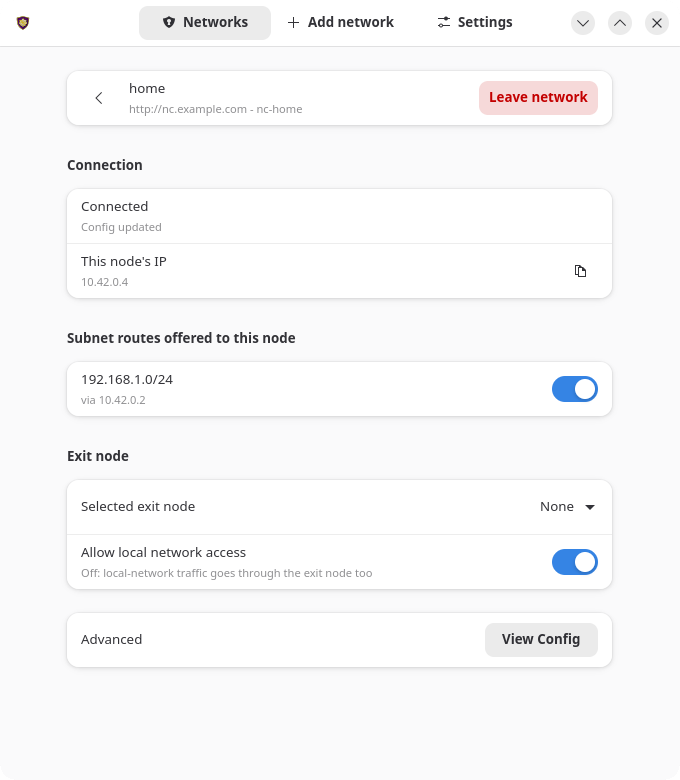 | 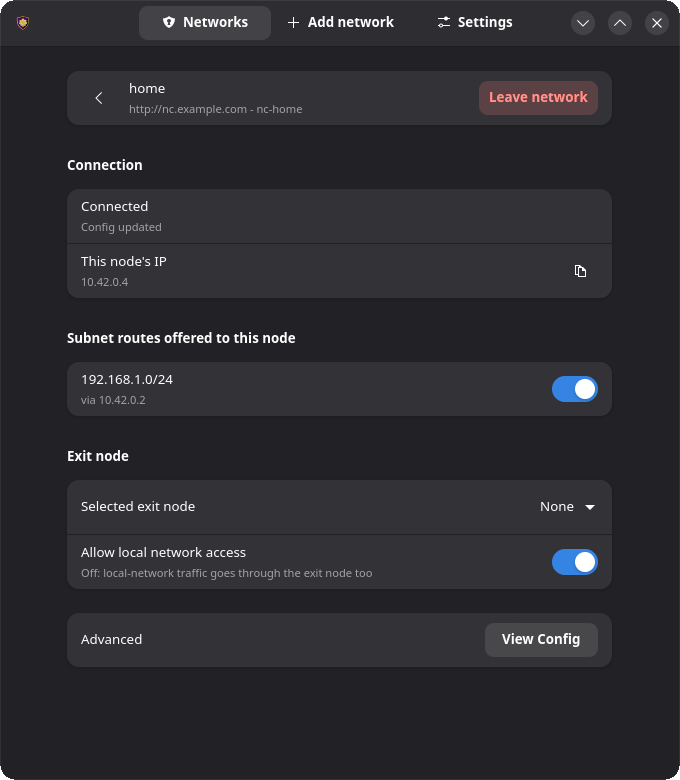 |
| Add network | 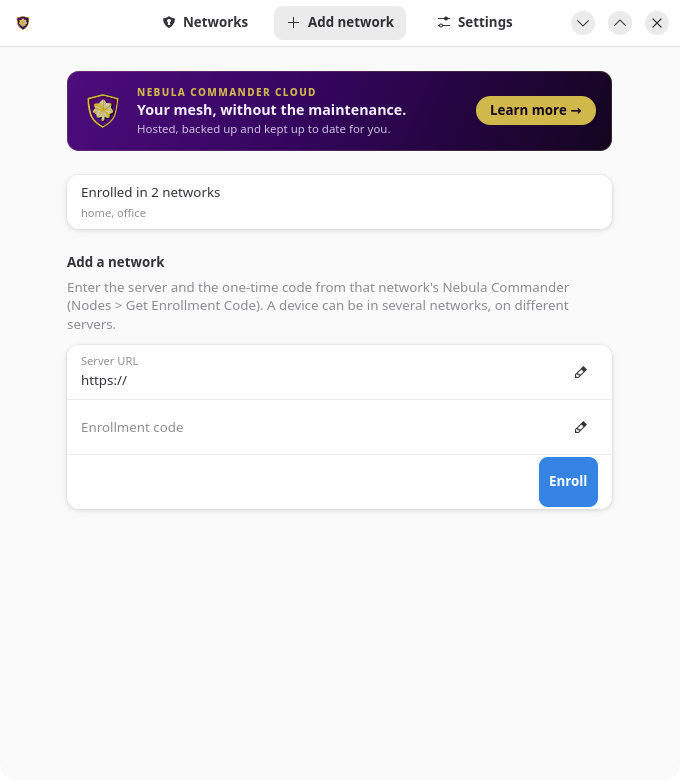 | 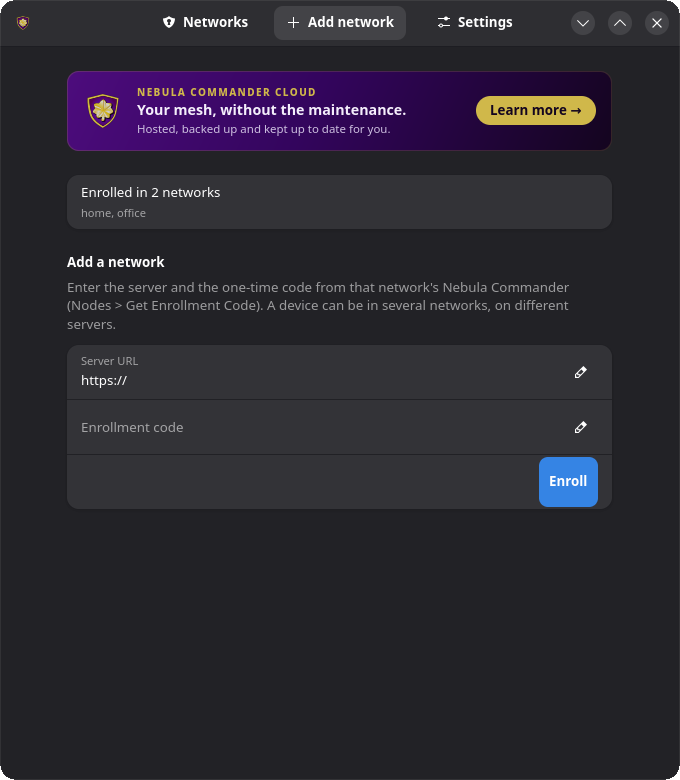 |
| Settings | 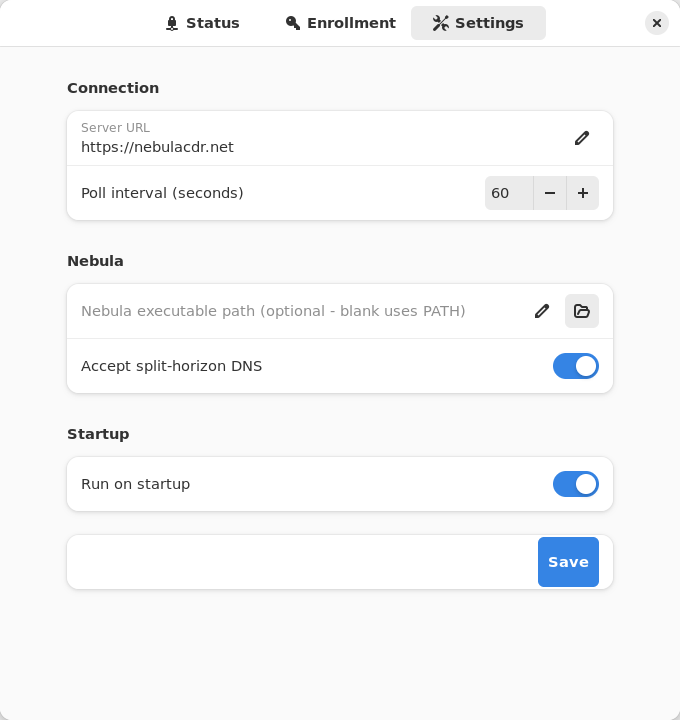 | 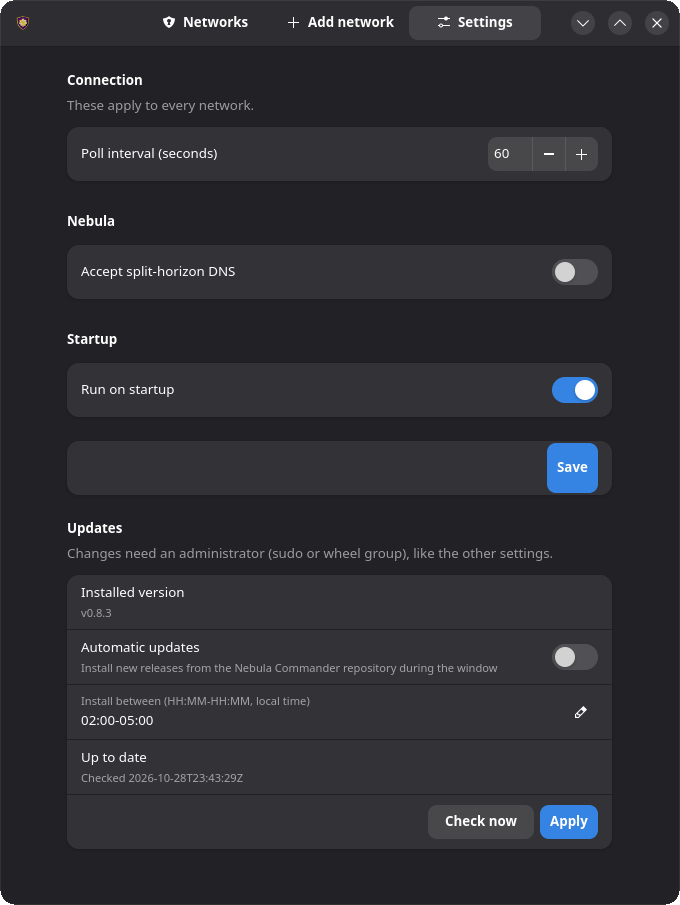 |
Subnet routes and exit nodes
Open the network on the Networks tab and use its route switches and Exit node picker. Changes apply on the service’s next poll. A device has one exit node across all its networks: picking one in a network replaces one in use in another. See Subnet routers and exit nodes for how routes are offered.
Split-horizon DNS
Turn on Accept split-horizon DNS in Settings and save. The service restarts with --accept-dns and configures the host’s resolver to match how it manages DNS (systemd-resolved, NetworkManager, dnsmasq, or /etc/resolv.conf). See Split-horizon DNS on the CLI page for details.
Re-enroll
Open the Add network tab and enroll again with a new code for the same node on the same server. This replaces that network’s token, and the service switches to it on its next poll.
If you’re moving the device to a different server, enrolling adds the new server’s network next to the old one. Open the old network on the Networks tab and click Leave network.
Headless use (service only)
With only nebula-commander-service installed, manage the service from the shell:
sudo systemctl status ncclient
sudo systemctl restart ncclient
journalctl -u ncclient -f
Run as root, ncclient enroll and ncclient routes automatically use the service’s state in /var/lib/ncclient when the service package is installed.
Enroll or re-enroll:
sudo ncclient enroll --server https://YOUR_NEBULA_COMMANDER_URL --code XXXXXXXX
sudo systemctl enable --now ncclient
Run enroll again with another network’s code to add that network. On re-enroll (a new code for the same node) the service picks up the new token on its next poll.
List or leave networks:
sudo ncclient networks list
sudo ncclient networks remove NAME    # name or id from the list
Subnet routes and exit nodes:
sudo ncclient routes list
sudo ncclient routes accept 192.168.1.0/24
With several networks, name one before the subcommand: sudo ncclient routes --network NAME list.
reject, accept-exit-node --via <IP>, and reject-exit-node work the same way (see the CLI page).
Split-horizon DNS: the service adds --accept-dns when /var/lib/ncclient/settings.json contains "accept_dns": true. Edit it as root, then sudo systemctl restart ncclient.
Updates
With the package repository configured, the client can upgrade itself during a daily window: Settings → Updates in the app, or sudo ncclient auto-update enable. Check now looks for a new release; when one is out, Install now installs it right away (with a progress bar), and Restart App reopens the app on the new version. See Automatic updates.
Troubleshooting
- The Networks tab says the service isn’t installed or is unreachable: install
nebula-commander-service and start it with sudo systemctl enable --now ncclient. The Flatpak app can’t do this for you. Revoked, deleted, or re-enrolled elsewhere - Nebula stopped. Enroll again to reconnect. in the journal: the device was revoked, deleted, or re-enrolled elsewhere; Nebula was stopped and its config and key removed. Re-enroll it with a new code.- “Administrator required” in the app: your account isn’t in the
sudo or wheel group. Ask an administrator to add you (sudo usermod -aG sudo USER on Debian/Ubuntu, wheel elsewhere, then log out and back in), or have them make the change. - Enrolled with
sudo ncclient enroll but the service still waits for enrollment (versions before 0.6.9): the token went to root’s home directory instead of /var/lib/ncclient. Upgrade, or prefix the command with NEBULA_COMMANDER_CONFIG_DIR=/var/lib/ncclient NEBULA_DEVICE_TOKEN_FILE=/var/lib/ncclient/token.
Run from source
From the nebula-commander repo root, with PyGObject, GTK 4, libadwaita, and jeepney installed (on Debian/Ubuntu: python3-gi gir1.2-gtk-4.0 gir1.2-adw-1 python3-jeepney):
python3 -m client.linux.desktop
It still needs a running ncclient.service that exposes the D-Bus API (from nebula-commander-service or the NixOS module). Without one, the Networks tab shows the service as not installed.
Build
See Linux Desktop App installation and Development: Manual builds for building the .deb/.rpm/Flatpak packages yourself.
1.2.5 - Windows App
On Windows, Nebula Commander (WinUI 3) is a native windowed app for a background Windows Service (NebulaCommanderService). The service does the actual work (polling for config and certs, running Nebula, applying split-horizon DNS) as LocalSystem.
Anyone can view; only administrators can change. Run normally, the app is view-only: status, routes and config are visible to every user. Enrolling, changing settings, accepting routes or exit nodes, installing/updating Nebula, and starting/stopping the service all require an elevated administrator. Use the Relaunch as administrator bar at the top of the app (or press Alt+R; one UAC prompt), or start it with Run as administrator. The service enforces this itself on every change, so other users on a shared PC can’t re-point or stop your tunnel.
The app and service are installed together by the MSI installer. The app isn’t designed to run without it: only the MSI registers the service (there’s no CLI install/remove subcommand for it), so a standalone app with no service shows Status as unreachable.
Where state lives
Everything lives in %ProgramData%\nebula-commander\, which only SYSTEM and Administrators can open. The app never touches it directly; it asks the service over a local named pipe.
| What | Where |
|---|
| Device tokens | tokens\<id>.bin, one per network (DPAPI-encrypted) |
| Settings | settings.json, written by the service: every network’s server and accepted routes, plus the device-wide settings |
| Nebula config, certs, and log | networks\<id>\, one folder per network: config.yaml (includes the node’s private key), certificates, nebula.log |
| Nebula itself | nebula\, installed and updated by the service |
<id> is the network’s id on this device, shown by ncclient networks list. Installs from before v0.8.0 kept one token.bin and the config directly in this folder; the service moves them into this layout on its first start.
The service’s own messages go to the Windows Application event log.
Enroll
- Open Nebula Commander from the Start Menu.
- Click Add network in the side bar, and enter the server URL and the one-time code from Nebula Commander (Nodes → open the node → Enroll).
This needs the app running as administrator. The service makes the enrollment request itself, stores the token, and starts the network right away instead of waiting for the next interval.
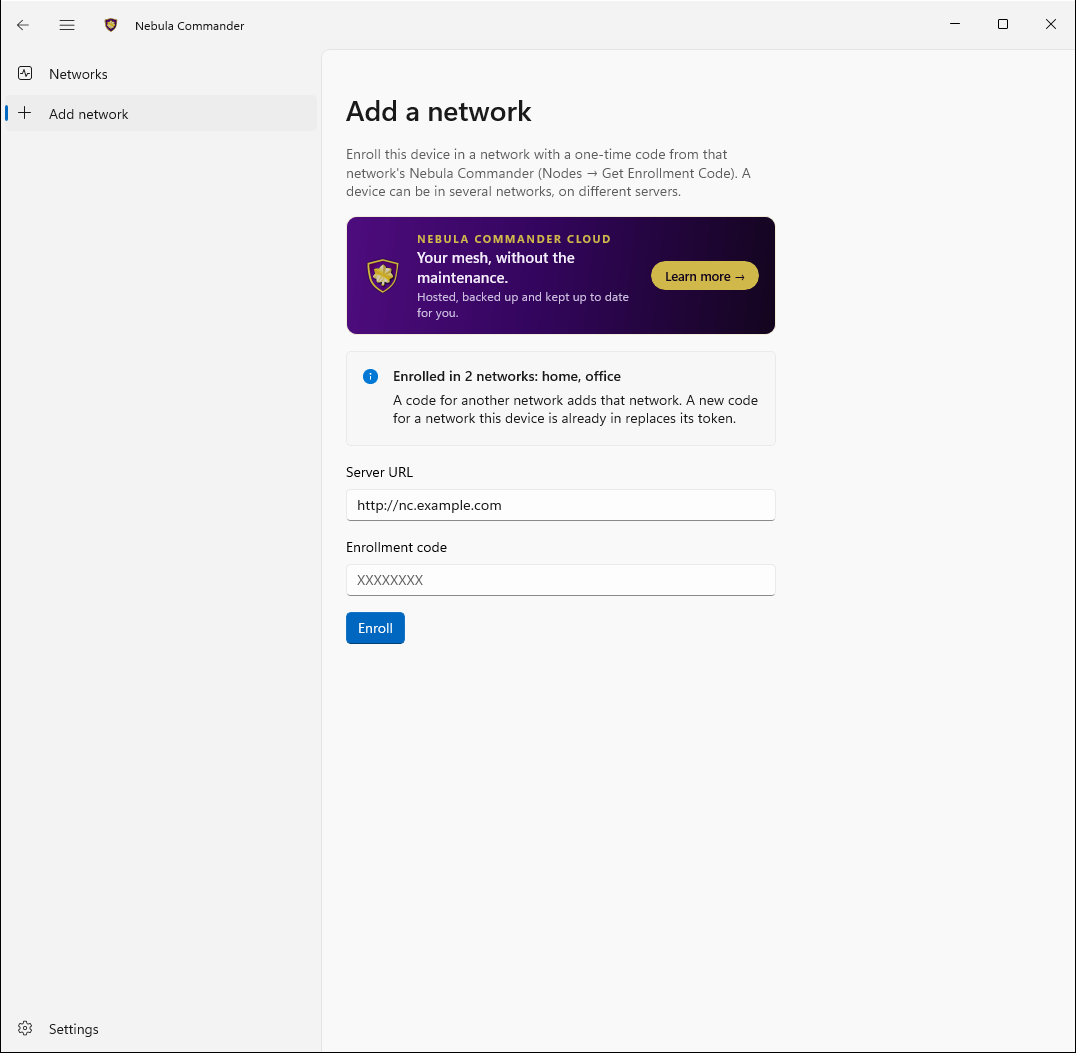
To join another network, use Add network again with that network’s code. One device can be in several networks, on different servers if needed. See Several networks on one device.
Don’t enroll with ncclient enroll from a terminal on an MSI install. The plain CLI writes to a per-user location the service never reads.
Using the app
The side bar has Networks and Add network, with Settings pinned at the bottom. The app follows the Windows light/dark app theme.
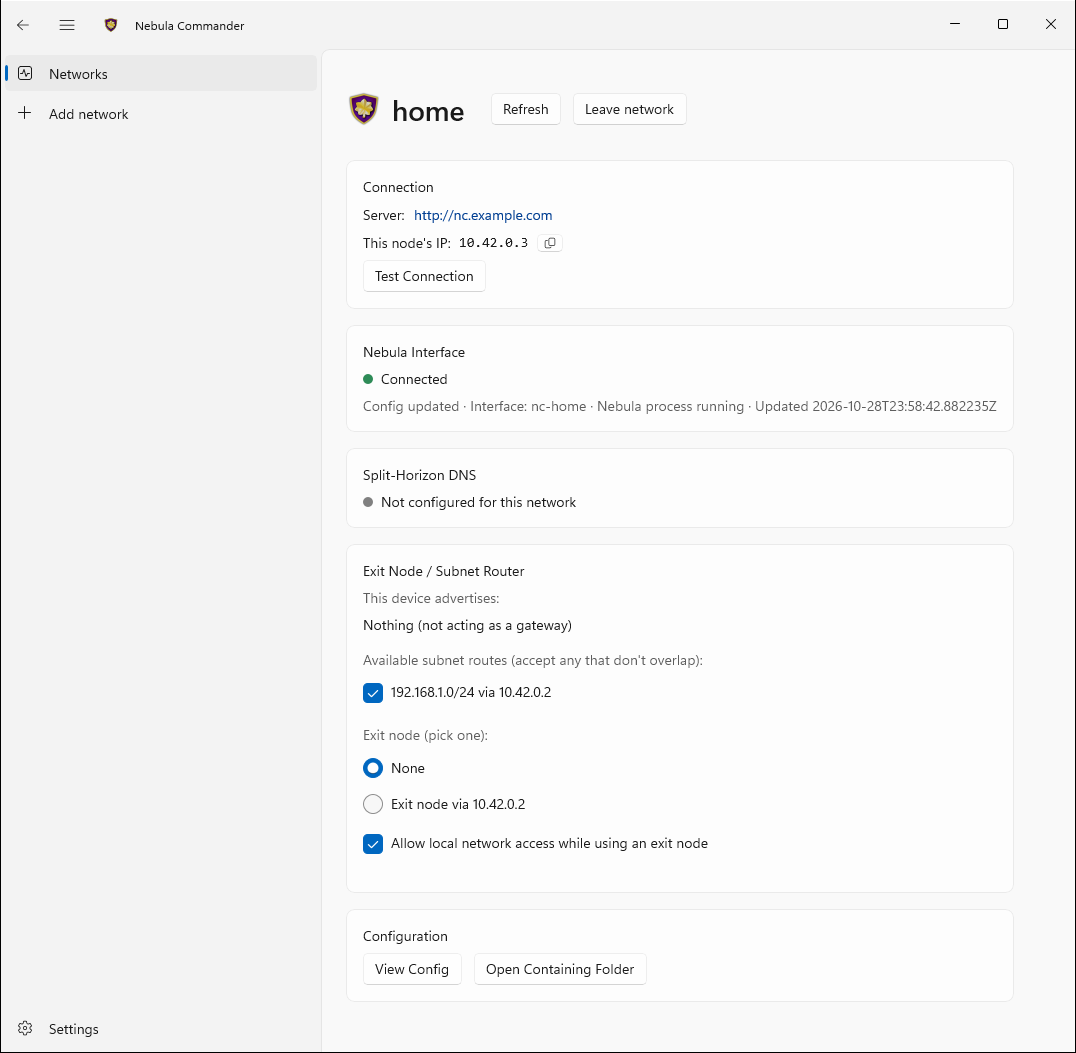
Networks: the Nebula Commander Service card (state and Start/Stop/Restart), then one entry per network this device is enrolled in. Click a network to open its page, which has one card each for:
- Connection: the server URL, This node’s IP in that network, and a Test Connection button.
- Nebula Interface: connected/error, the interface name, whether the Nebula process is running, and when the service last updated.
- Split-Horizon DNS: active or inactive for this network.
- Exit Node / Subnet Router: what this device advertises, plus checkboxes for offered subnet routes and a picker for offered exit nodes.
- Configuration: View Config (the node’s private key is shown as
<redacted>) and Open Containing Folder (administrator only).
Use Refresh to update the page right away, and Leave network to remove the network from this device.
Add network: enroll in a network with a server URL and code.
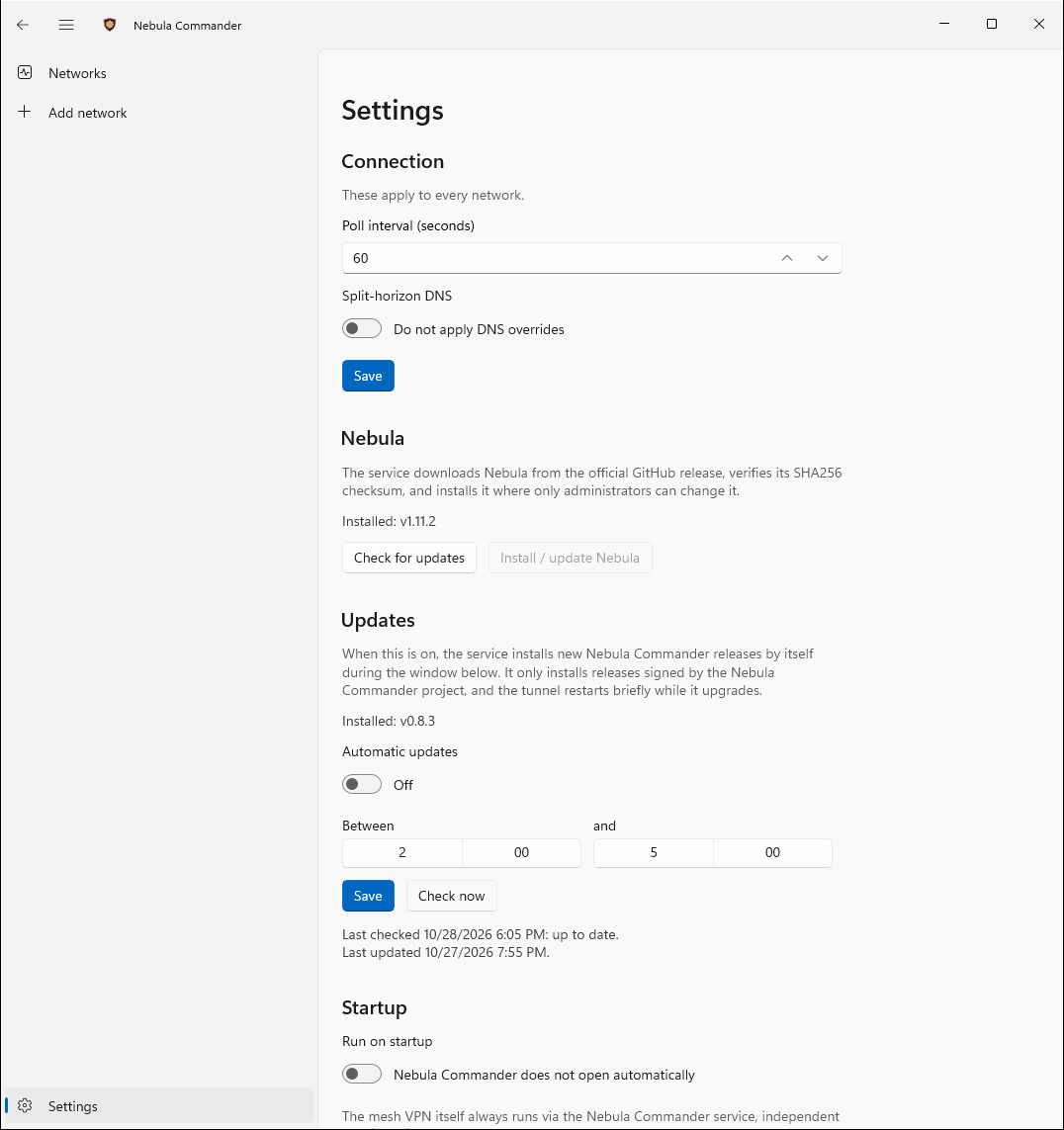
Settings: poll interval and Split-horizon DNS, which apply to every network. Under Nebula you can see the installed Nebula version, Check for updates against Nebula’s GitHub releases, and Install / update Nebula: the service downloads the official release, verifies its SHA256 checksum, and installs the whole archive (nebula.exe, nebula-cert.exe, wintun) itself. The service installs Nebula automatically on first start, and there’s no custom Nebula path. Under Startup, Run on startup opens the app to the tray when you sign in.
| A network’s page | Settings |
|---|
 |  |
Closing the window minimizes it to the tray rather than exiting. Use the tray icon’s Open Nebula Commander item to bring it back, or Exit to quit the app. The service keeps running either way: it starts automatically at boot, whether or not the app is open or anyone is signed in.
To control the service without the app, use Services (services.msc) or an elevated prompt (non-administrators can only query it):
sc.exe query NebulaCommanderService
Restart-Service NebulaCommanderService
Subnet routes and exit nodes
Open the network on the Networks page and use the checkboxes and the exit-node picker on its Exit Node / Subnet Router card. A device has one exit node across all its networks: picking one in a network replaces one in use in another, and the card warns you when that would happen. The service applies changes right away. See Subnet routers and exit nodes for how routes are offered.
Split-horizon DNS
Turn on Split-horizon DNS in Settings. The service applies it with NRPT rules for the network’s domain and removes them when turned off or when the service stops. The Split-Horizon DNS card on each network’s page shows whether it’s active for that network.
Re-enroll
Open Add network and enroll again with a new code for the same node on the same server. This replaces that network’s token and makes the service poll immediately. Nothing needs restarting.
If you’re moving the device to a different server, enrolling adds the new server’s network next to the old one. Open the old network on the Networks page and click Leave network.
Updates
The service can install new releases by itself during a daily window: Settings → Updates (as administrator), or ncclient auto-update enable from an elevated prompt. Check now looks for a new release; when one is out, Install now installs it right away with a progress bar, and Restart App reopens the app on the new version. See Automatic updates.
Troubleshooting
- The Networks page shows the service as unreachable: the MSI’s service isn’t installed or isn’t running. Start it from the Networks page or
services.msc, or reinstall the MSI. - “Administrator required” when changing something: relaunch the app as administrator (the bar at the top of the window).
- Nebula Interface shows an error: as administrator, check that network’s
nebula.log under %ProgramData%\nebula-commander\networks\ (Open Containing Folder on the network’s page gets you there). - The app says Nebula isn’t installed: the service’s first-run download failed (e.g. offline). Use Settings → Install / update Nebula as administrator.
- Enrolled from a terminal and the app still says not enrolled: the CLI wrote a per-user token. Enroll from the app instead.
Run from source
From client/windows-app/:
dotnet build # or: dotnet run
Running this way still expects a real installed-and-running NebulaCommanderService to control (the app checks that the control pipe really belongs to that service). If it isn’t installed or running, the Networks page says so rather than failing.
Build (self-contained publish)
cd client/windows-app
dotnet publish -c Release -r win-x64
Output: bin\Release\net10.0-windows*\win-x64\publish\NebulaCommanderApp.exe, a single self-contained file (it bundles the .NET runtime and Windows App SDK, so the target machine needs no prerequisites). See client/windows-app/README.md for details.
For the background service, see client/windows/README.md and Development: Manual builds. The Windows MSI installer installs and registers all three: ncclient.exe, NebulaCommanderApp.exe, and ncclient-service.exe.
1.2.6 - Several networks on one device
From v0.8.0, one ncclient can be in several networks at once, each on its own Nebula Commander server if needed.
From v0.8.0, one device can be in several networks at once, for example your own network plus a customer’s. The networks can be on the same Nebula Commander server or on different ones. You enroll once per network, with a code from that network’s Nebula Commander, and the one ncclient on the device runs them all.
Each network gets its own Nebula process on its own interface, with its own token, config, certificates, routes and DNS. The desktop apps list them on a Networks page.
Add a network
Enrolling again with a code from another node adds a network. Enrolling with a new code for the same node on the same server replaces that network’s token instead, which is how you re-enroll.
| Client | How |
|---|
| Windows app | Add network in the side bar (as administrator): server URL and code. |
| Linux app | The Add network tab, or the Add network button on the Networks tab. |
| ncclient CLI and the headless Linux service | sudo ncclient enroll --server URL --code CODE, once per network. |
| NixOS module | One entry per network in services.ncclient.networks. |
| Docker | One network per container. Run a second container for a second network. |
A running service picks up a new network within a few seconds; nothing needs restarting.
sudo ncclient enroll --server https://nc.example.com --code XXXXXXXX       # first network
sudo ncclient enroll --server https://nc.customer.example --code YYYYYYYY  # another one
List and leave networks
sudo ncclient networks list               # every network, with its interface, IP and state
sudo ncclient networks remove customer    # leave one, by name or id
networks list prints each network’s id, name, interface, this node’s IP in it, state and server. networks remove stops that network’s Nebula and deletes its token and files. In the desktop apps, open the network and click Leave network.
Leaving a network on the device doesn’t delete the node in Nebula Commander. Delete or revoke it there if the device shouldn’t come back.
Commands for one network
ncclient routes works on one network. With more than one enrolled, say which with --network NAME (the name or the id from networks list), before the subcommand:
sudo ncclient routes --network customer list
sudo ncclient routes --network customer accept 10.20.0.0/16
With only one network, leave --network out. In the desktop apps, routes, the exit node and the network’s status are on that network’s page.
Settings such as the poll interval and split-horizon DNS apply to every network on the device.
Things to know
- One exit node per device. All of a device’s internet traffic can only leave through one exit node. Accepting an exit node in one network replaces the one in use in another network. Subnet routes from different networks can be used at the same time, as long as they don’t overlap.
- Listen ports. Two networks on one device can’t bind the same UDP port. If they both ask for the same one (by default all nodes use
4242), the second network gets a port the operating system picks, and peers learn it through the lighthouses. A lighthouse or relay needs a fixed port, so if one of the networks makes this device a lighthouse or relay, give the node in the other network a different Listen port in Nebula Commander. See Listen port. - Interface names. Each network needs its own interface. Nebula Commander gives every network an interface name starting with
nc- (shown and editable on the network’s page). Networks on servers older than v0.8.0 all use nebula1; when a second such network joins a device, ncclient names its interface nc-<network id> instead, and the first one keeps nebula1. The name sticks, so it doesn’t change back when the other network is removed. - Several ncclients on one Linux host. If you run separate ncclient instances instead (for example several Docker containers on one host), every one must be v0.8.0 or newer. Older versions remove NetworkManager settings the others rely on and take their tunnels down. Only one instance can use the
/etc/resolv.conf DNS fallback.
Upgrading from before v0.8.0
On its first start, v0.8.0 or newer converts an existing single-network install to the new layout: the token moves to a per-network location and the network’s files move into networks/<id>/ under the output directory. Nothing else changes and the device stays enrolled.
This is one-way. Going back to a version before v0.8.0 afterwards needs a new enrollment.
1.2.7 - Automatic updates
From v0.7.0, the client can keep itself up to date. It’s off by default, and only an administrator on the device itself can turn it on. The Nebula Commander server shows each node’s client version and whether automatic updates are on, but can’t change the setting.
| Install | What “on” does |
|---|
| Windows (MSI) | The service downloads and installs new releases during a daily window you choose. |
| Linux deb/rpm from the package repository | A systemd timer upgrades the Nebula Commander packages from that repository during the window. |
| NixOS module | Notify only. Checks daily and tells you when a release is out, with the commands to update. It never changes the system: your flake decides the version. |
| Docker, Flatpak, pip, a bare binary | Not available. Update these the way you installed them (pull a new image, Flathub, pip install -U). |
Turn it on
Windows: open the app as administrator (Relaunch as administrator), go to Settings → Updates, switch on Automatic updates, pick the window and click Save. Or, from an elevated prompt:
ncclient auto-update enable --window 02:00-05:00
Linux: in the desktop app, Settings → Updates, then Apply (you need to be in the sudo or wheel group). Or:
sudo ncclient auto-update enable --window 02:00-05:00
This is refused if the official package repository isn’t configured. Add it first. A .deb or .rpm installed by hand without the repository can’t update itself.
NixOS: sudo ncclient auto-update enable, or the desktop app. The window doesn’t apply.
Other commands:
ncclient auto-update status        # installed version, setting, last check and install
ncclient auto-update check-now     # check for a new release now; doesn't install it (admin)
ncclient auto-update install-now   # check, and install a new release right away (admin)
ncclient auto-update disable       # admin
Before v0.8.3, check-now also installed the update straight away when automatic updates were on. From v0.8.3 it only checks; an update it finds installs in the next window, or when you install it now.
Install an update now
You don’t have to wait for the window, and automatic updates don’t have to be on. On Windows (MSI) and Linux deb/rpm installs from the package repository:
- In the app, go to Settings → Updates (as administrator on Windows) and click Check now.
- If a newer release is out, an Install now button appears. Click it.
- A progress bar shows the download (Windows) and then the install. The tunnel drops for a few seconds while the client restarts.
- When it’s done, the app says Download complete. Please restart the app or click Restart App. Click Restart App to reopen the app on the new version. The same message appears at the top of the other pages.
From the command line, ncclient auto-update install-now does the same (elevated prompt on Windows, sudo on Linux). Follow it with ncclient auto-update status.
Where automatic updates aren’t available (see the table above), Install now isn’t either. On NixOS, Check now tells you a release is out and you update the flake.
The window
Updates install once a day, at a random time inside the window (local time, HH:MM-HH:MM, default 02:00-05:00). Windows that cross midnight, like 23:00-01:00, work. A device that’s off during the window waits for the next one. The tunnel drops for a few seconds while the client restarts.
What it trusts
- Windows and NixOS read a release manifest from
https://pkgs.nebulacommander.com/updates/latest.json. The client uses it only if its signature checks out against a key built into the client. The Windows installer it names must come from the project’s GitHub releases and match the manifest’s SHA-256, or it’s discarded. - Linux packages come from the signed package repository, with the usual apt/dnf/zypper signature checks. If the repository can’t be verified, the update stops and says so.
- The client only ever moves to a newer stable release. It never downgrades or installs pre-releases. Development builds never update.
Where to look when something goes wrong
ncclient auto-update status shows the last check and the last install, with the error if there was one.- Windows: the installer log is in
C:\ProgramData\nebula-commander\updates\install-<version>.log (administrators only). If the app was open during an update, it shows Nebula Commander was updated with a Restart App button. - Linux:
journalctl -u ncclient-update. The timer is ncclient-update.timer; its window lives in /etc/systemd/system/ncclient-update.timer.d/window.conf, which ncclient writes. Don’t edit it by hand.
NixOS: updating when notified
When a release is out, ncclient auto-update status, the desktop app and a desktop notification tell you. To update:
nix flake update nebula-commander     # in your system flake
sudo nixos-rebuild switch
If your flake pins a release (github:NixRTR/nebula-commander/v0.7.0), change the tag instead. A NixOS build reports the commit it was built from (for example “built from commit f67bc81”) rather than a version number.
2 - Subnet Routers and Exit Nodes
Turn a node into a subnet router or an exit node, and pick which routes each other node actually uses — built on Nebula’s unsafe_routes.
Nebula Commander can turn a node into a subnet router (it advertises a LAN behind it
to the rest of the mesh, the way tailscale up --advertise-routes does) or an exit
node (it advertises 0.0.0.0/0/::/0 and routes all of another node’s traffic, the
way tailscale up --advertise-exit-node does). Both build on Nebula’s own
unsafe_routes feature.
This page covers how it’s configured from both sides — the gateway that advertises a
route, and the other nodes that actually use it — what happens automatically for
nodes running ncclient on Linux, and — the part that’s easy to miss — what you
have to do yourself for everything else (Windows, macOS, Docker-deployed ncclient,
or bare nebula).
Two sides of the same setting
Every route has a gateway (the node advertising it) and one or more
consumers (the nodes that actually route through it). Nebula Commander exposes
both sides in the Nodes page’s node-details panel:
- On the gateway node, under Advanced → Subnet Router & Exit Node Config
(and Advanced → Exit Node), you choose what this node advertises and, per
route, a “Used by” list of the groups and individual hosts allowed to consume it.
- On a consumer node, the visible (non-Advanced) Use Subnet Router and
Use Exit Node dropdowns let you pick a gateway directly, without opening the
gateway’s own settings.
Both mechanisms write to the same data: picking a gateway from a consumer’s
dropdown adds that consumer as a host in the gateway’s “Used by” list for every matching
route, and clears it from any other gateway’s routes of the same kind (a node uses
at most one subnet router and one exit node at a time). Either way, a route
reaches nobody until an admin explicitly says who it’s for — advertising a route
is never enough on its own.
Setting up a route (gateway side)
In a node’s details panel (Nodes → hostname → Edit), expand Advanced:
- Exit Node — a single checkbox, Exit node (route all traffic). Checking it
advertises both
0.0.0.0/0 and ::/0 from this node. - Subnet Router & Exit Node Config → Advertised subnets — a checklist of local
interfaces
ncclient discovered on this node (ethernet, Wi-Fi, Tailscale, or
another Nebula interface on the same host; Docker interfaces are never offered).
Only populated for nodes actively running ncclient on Linux. - Subnet Router & Exit Node Config → Other — type any CIDR by hand. Use this for
a subnet reachable through the node by some other means
ncclient can’t detect on
its own, or on a node not running ncclient at all.
Under each route is a “Used by” disclosure. Expand it to see who can use the
route, and while editing, add to it:
- Group — pick a group and click Add. Every node in that group gets the
route, including nodes added to the group later, without editing the gateway again.
- Host — pick a single node and click Add.
Each entry has a delete button to remove it. A node that’s both listed as a host and
in a listed group simply gets the route once.
Picking a route (consumer side)
On any other node’s details panel — visible without opening Advanced:
- Use Subnet Router — a dropdown listing every other node on the network that
advertises at least one subnet. Choosing one routes this node’s traffic for all of
that gateway’s advertised subnets through it; None stops using one.
- Use Exit Node — the same idea for full-tunnel routing: a dropdown of every
other node advertising an exit route.
This works for every platform, not just desktop/ncclient nodes - a mobile node can
pick a subnet router or exit node too, since consuming a route needs no host
automation, just the generated Nebula config.
Accepting a route locally (desktop ncclient nodes)
The picker above is server-side authorization - it controls what a node is allowed
to consume, the same way DNS being enabled for a network doesn’t by itself mean a
device applies it (accept_dns/--accept-dns is the separate, local opt-in for
that). Subnet routers and exit nodes work the same way on desktop ncclient nodes
(Linux and Windows): being picked as a consumer makes the route available, not
automatically active. ncclient writes everything it’s authorized to consume to
available-routes.json in its output directory, but only writes the locally
accepted subset into config.yaml for Nebula to actually use.
- CLI (
ncclient on Linux, ncclient.exe on Windows - same commands either
way): ncclient routes list shows what’s available and what’s currently
accepted; ncclient routes accept <CIDR> / routes reject <CIDR> manage subnet
routes, routes accept-exit-node --via <IP> / routes reject-exit-node manage
the exit node. Multiple subnet routes can be accepted at once as long as their
CIDRs don’t overlap - accept rejects an overlapping one with an explanation of
which already-accepted route it conflicts with. At most one exit node is ever
accepted at a time. - The Windows app: the Status page’s
“Exit Node / Subnet Router” card lists the same available/accepted state
interactively - checkboxes for subnet routes (disabled with a reason if accepting
one would overlap an already-accepted route) and a single-select list for the exit
node.
- The Linux desktop app: the Status tab
has a switch per offered subnet route (disabled with the conflict shown if it would
overlap an accepted one) and an Exit node picker. It also sends a desktop
notification when a new route is offered.
A locally accepted/rejected change is picked up within one poll cycle without
needing to re-enroll or restart anything by hand (or immediately, if something
nudges the service to poll now - the Windows app already does this after a
Settings change). This is entirely client-side: the “Used by” list above already
determines authorization; this is a separate device-level consent step on top
of it, and doesn’t exist for mobile (Mobile Nebula) nodes, which have no local
ncclient process to gate anything through - a mobile node’s only control is the
server-side picker.
What happens automatically (Linux nodes running ncclient)
For a gateway node whose ncclient has confirmed it’s Linux (shown by the absence
of the amber warning under Advanced → Subnet Router & Exit Node Config):
- Nebula Commander generates the correct
tun.unsafe_routes entry (with the
required via) in every consumer node’s config, and signs the gateway’s own
certificate with the -subnets claim Nebula requires before it will let that node
route the CIDR at all. ncclient on the gateway polls GET /api/device/advertised-routes and, when its
own advertised routes change, enables IP forwarding
(net.ipv4.ip_forward, and net.ipv6.conf.all.forwarding if any route is IPv6)
and installs a dedicated inet ncclient_routing nftables table: forwarding
accept rules scoped to each advertised subnet, and a masquerade rule for the
exit-node case.
None of this needs the admin to touch the host directly. nft (nftables) must be
installed on the gateway for step 2 to work - ncclient logs a warning and skips it
if nft isn’t found, leaving the route inert.
Using an exit node (full tunnel)
An accepted exit node sends all of the consumer’s traffic through the gateway,
except Nebula’s own encrypted UDP. That exception matters: Nebula installs an exit
route as a plain default dev <tun> route, which also catches Nebula’s traffic to the
gateway, the lighthouses and its peers. Unless they’re on the consumer’s own LAN, that
traffic is routed into the tunnel it is meant to carry, and nothing works - not the
gateway, not the peers, not the internet, and not any other Nebula network on the same
host. ncclient 0.7.2 and later handle this for you:
Linux: the exit route is written with install: false, so Nebula keeps it
internally, and ncclient installs the default route itself in table 52042, with
policy rules (ip rule, priorities 32740-32742) that exempt the UDP ports of every
running Nebula on the host. An unreachable default sits under it as a kill switch:
while Nebula is down, internet traffic is dropped instead of leaving outside the
tunnel. Everything is removed when the exit node is rejected or ncclient stops.
Windows: Nebula installs the route as before, and ncclient binds Nebula’s
socket to the physical uplink’s IPv4 address (listen.host). Windows sends a packet
only out of the interface that owns its source address, so Nebula’s own traffic
stays on the uplink while everything else - including other traffic to the exit
gateway, the lighthouses or the Nebula Commander server - goes through the exit
node. When the uplink’s address changes (DHCP, another Wi-Fi), ncclient rebinds
and restarts Nebula on its next poll.
Local network: stays direct by default (printers, NAS, the router). With
Allow local network access off (routes exit-lan block), only the Nebula
overlays and DHCP renewals stay local; everything else, including a DNS resolver on
the LAN, goes through the exit node. Connections coming in from the LAN (SSH,
file shares, web UIs on this machine) keep working: replies leave the way the
connection came in.
IPv6 never leaks around the tunnel. If the exit gateway doesn’t route ::/0,
IPv6 is blocked while the exit node is active (an unreachable route on Linux, an
outbound firewall rule on Windows), so apps fall back to IPv4 through the tunnel.
On today’s IPv4-only networks the gateway’s certificate can’t carry ::/0, so
IPv6 sent into the tunnel is dropped there.
Mobile apps aren’t affected: the OS VPN APIs exempt the app’s own traffic.
Hosts not running ncclient (a bare nebula with a downloaded config) need the
same treatment by hand, or an exit gateway on their LAN. On Linux, use
install: false on the 0.0.0.0/0 entry plus:
ip rule add pref 32740 ipproto udp sport 4242 lookup main
ip rule add pref 32741 lookup main suppress_prefixlength 0
ip rule add pref 32742 lookup 52042
ip route add default dev nebula1 table 52042
If the host enforces strict reverse-path filtering in nftables (NixOS’s
networking.firewall.checkReversePath = true, the default), and exit-node traffic
doesn’t come back, set it to "loose". A strict rp_filter=1 sysctl has been tested
and works.
What you have to do yourself (hosts not running ncclient on Linux)
This includes Windows nodes, macOS, a Docker-deployed ncclient (it runs in its own
network namespace, so it can’t reach the host’s routing table at all), or any host
running the bare nebula binary directly. Nebula Commander still generates the
correct config for these nodes - ncclient’s automation is the only piece that’s
Linux-only. On such a gateway node you need to:
Get the config onto the host. Either let a non-Linux/bare ncclient write it
normally, or download it yourself from the node’s Config button (admin UI) or
GET /api/device/config (device token) and place it where nebula -config <path> expects it.
Enable IP forwarding.
- Linux (no
ncclient): sysctl -w net.ipv4.ip_forward=1 (and
net.ipv6.conf.all.forwarding=1 for IPv6 routes/exit-node), persisted via a file
under /etc/sysctl.d/. - Windows: enable IP forwarding on the network adapter bound to the Nebula tun
device, and configure routing/NAT (e.g. via
netsh interface ipv4 set interface "<adapter>" forwarding=enabled, plus RRAS if you need NAT for an exit node) -
consult Microsoft’s routing documentation for your Windows version. - macOS:
sysctl -w net.inet.ip.forwarding=1, plus pfctl for NAT.
Allow forwarding and (for an exit node) NAT between the Nebula tun interface and
your physical interface. On Linux with nftables, this is exactly what
client/linux_routing.py does for ncclient - use
it as a reference. For a subnet route to 192.168.1.0/24 via tun device nebula1:
table inet ncclient_routing {
    chain forward {
        type filter hook forward priority filter; policy accept;
        iifname "nebula1" ip daddr 192.168.1.0/24 accept
        ip saddr 192.168.1.0/24 oifname "nebula1" accept
    }
}
For an exit node, add a NAT table masquerading traffic from the tun device out
your uplink interface (eth0 below):
table inet ncclient_routing {
    chain postrouting {
        type nat hook postrouting priority srcnat; policy accept;
        iifname "nebula1" oifname "eth0" masquerade
    }
}
iptables-only systems need the equivalent iptables -A FORWARD ... /
iptables -t nat -A POSTROUTING ... -j MASQUERADE rules.
Troubleshooting
Accepting an exit node cuts the node off completely (it can’t even reach the
gateway’s Nebula IP) - the consumer runs ncclient older than 0.7.2, or a bare
nebula, and the gateway isn’t on its LAN: Nebula’s own traffic is being routed into
its own tunnel. Upgrade ncclient, or see Using an exit node
for the manual rules.
nebula fails to start with Could not parse tun.unsafe_routes: entry N.via ... is not present - you’re running a config from before Nebula Commander added the
via/-subnets fix, or a hand-edited config that omits via. Re-download the
config; every generated tun.unsafe_routes entry always includes via now. If this
is your own config (not Nebula Commander’s), every entry needs a via pointing at
the gateway node’s Nebula IP.
A consumer node has the route in its config, but traffic to the subnet doesn’t
arrive - most likely the gateway’s own firewall. Since Nebula 1.10, a firewall rule
only matches traffic to the node’s own Nebula IP unless it also sets local_cidr -
Nebula Commander generates a local_cidr-scoped accept rule for each advertised
subnet: one per host in that route’s “Used by” list, matched by that consumer’s own
certificate-verified Nebula IP (cidr: <ip>/32), and one per group, matched by the
group in the consumer’s certificate (group: <name>). If the consumer isn’t actually
covered by “Used by” - even if it somehow has the route in its own config, e.g. a
hand-edited config or a non-ncclient host - the gateway has no matching rule and
will drop the forwarded traffic; check the “Used by” list first. A manually-written
config for a non-ncclient gateway needs the equivalent cidr/local_cidr rules
added by hand. See Nebula’s firewall docs
for the exact rule shape.
The route works for one node but not another - check that node’s selection:
either its own Use Subnet Router/Use Exit Node dropdown, or the “Used by”
list on the gateway it should be using. A route only reaches nodes explicitly
selected on one side or the other, and - since the gateway’s firewall now enforces
this per node, not just config distribution - an unselected node can’t use the
route even if it has (or is given) a matching tun.unsafe_routes entry by some
other means.
3 - Public Endpoints and Reachable Addresses
Tell the mesh where to find a node on the underlay: a public endpoint and additional endpoints every peer knows about, extra addresses the node reports to its lighthouses, and the UDP port it listens on.
Nebula finds most nodes on its own: each node reports the addresses of its local
interfaces to the lighthouses, and the lighthouses also see the address a node
connects to them from. Three optional per-node settings cover what that misses. They
reach other nodes by different paths, so they’re separate fields. A fourth setting,
the listen port, is the UDP port the node itself binds.
| Public endpoint | Additional endpoints | Additional reachable addresses |
|---|
| Where to set it | Node details panel | Node details panel, once a public endpoint is set | Node details → Advanced |
| Values | One host:port (hostname, IPv4, or [IPv6]) | Up to 8 host:port, added one at a time | Up to 8 IP:port, added one at a time |
| Nebula setting | Every peer’s static_host_map | Every peer’s static_host_map, after the public endpoint | This node’s own lighthouse.advertise_addrs |
| How other nodes learn it | Written into their config | Written into their config | Reported to the lighthouses, which pass it on |
| Lighthouses and relays | Need one | Allowed | Not shown (Nebula ignores it on lighthouses) |
| Changing it restarts Nebula on | Every node on the network | Every node on the network | That node only |
They can be used together: the endpoints let peers reach a node without asking a
lighthouse first, and the additional reachable addresses fill in paths the
lighthouses can’t see.
Additional endpoints
From v0.8.0, a node with a public endpoint can have up to 8 more endpoints. Every
peer gets the public endpoint and the additional endpoints in its
static_host_map, and Nebula tries each of them. Use them for addresses only some
nodes can reach. Nodes that can’t reach an address just skip it.
The typical case is a lighthouse or relay inside an office:
- Forward UDP
4242 on the office router to the machine, and give it a DHCP
reservation. - Set its public endpoint to the office’s public address, for example
203.0.113.7:4242. Nodes outside the office use this one. - Add its LAN address as an additional endpoint, for example
192.168.1.50:4242. Machines in the office reach it directly, without the
router having to send traffic back to its own public address (NAT loopback,
which many routers don’t do for UDP).
To add one, open the node, click Edit, type a host:port under Additional
endpoints (it appears once the public endpoint is filled in), and click Add.
Use the trash button to remove one, then Save. Through the API, the field is
extra_endpoints on PATCH /api/nodes/{id}, a list with one endpoint per item.
Rules:
- Only alongside a public endpoint. Clearing the public endpoint removes the
additional endpoints in the same save.
- Same format as the public endpoint: hostname, IPv4 or
[IPv6], plus a port.
Private addresses are fine. Loopback, 0.0.0.0, multicast, reserved addresses and
addresses inside the Nebula network are rejected. - An entry that repeats the public endpoint or another entry is dropped.
- Changing the list updates every peer’s config, so Nebula restarts once on every
node in the network. No certificate is re-signed.
Use additional reachable addresses instead when the node isn’t a lighthouse and
you only want the lighthouses to hand the address out. Peers then learn it when they
look the node up, and nothing changes in every other node’s config.
Additional reachable addresses
When to add them
Add the addresses Nebula can’t discover itself:
- A port forward on the router in front of the node, especially when the
external port isn’t
4242. Add the router’s public IP and the forwarded port. - A second uplink, or a LAN address that peers on the same site should try
first.
You don’t need to add the node’s own interface addresses or the address the
lighthouse already sees; Nebula reports those automatically.
Adding and removing addresses
- Open the node, click Edit, and expand Advanced.
- Under Additional reachable addresses, type one
IP:port, for example
203.0.113.7:4242 or [2001:db8::1]:4242, and click Add. Repeat for each
address. - Use the trash button next to an address to remove it.
- Click Save.
The node picks up the change on its next config poll and restarts Nebula. The
certificate isn’t re-signed, and no other node needs to restart.
Through the API, the field is advertise_addrs on PATCH /api/nodes/{id}: a list
with one address per item. Send [] to clear it. Leave the field out to keep the
current list.
Rules
- IP addresses only. Nebula resolves a hostname here once at startup and
doesn’t start if the lookup fails, so hostnames are rejected.
- Port
0 means the node’s own listen port. - IPv6 goes in brackets:
[2001:db8::1]:4242. - Rejected: addresses inside the Nebula network itself, loopback, link-local,
multicast, reserved space (
240.0.0.0/4, including the broadcast address
255.255.255.255), IPv4-mapped IPv6 (use the plain IPv4 address instead), and
0.0.0.0 / ::. - At most 8 addresses per node. Duplicates are merged.
- Addresses ending in
.0 or .255 are accepted but flagged with a warning:
on a /24 LAN they’re the network or broadcast address and won’t work, but on a
larger LAN they can be ordinary hosts. Nebula Commander can’t see your LAN’s
subnet mask, so it’s up to you.
Additional reachable addresses were contributed by Austin Colt
(@YeeClaw).
Listen port
Every node listens on UDP 4242 unless you change Listen port (UDP) in the node
details panel. The value becomes the node’s listen.port. The field is shown for
desktop nodes only. Give nodes different ports when:
- Several nodes sit behind one NAT. With the same source port, the NAT can keep
the port for only one of them and remaps the others unpredictably. With distinct
ports, each node gets its own predictable mapping and its own port forward.
- One device is in more than one network. Each network runs its own Nebula on
that device, and two can’t bind the same port. See
Several networks on one device.
Rules:
0 lets the operating system pick a free port at each start. Peers learn the port
through the lighthouses. Lighthouses and relays can’t use 0: peers reach them at
their public endpoint, which needs a fixed port.- Changing the port doesn’t update the public endpoint. For a lighthouse or relay,
point the public endpoint at the new port, or at a port forward to it.
- Changing the port restarts Nebula on that node only. No certificate is re-signed.
- Through the API, the field is
listen_port on PATCH /api/nodes/{id}.
4 - Running Nebula manually
This is the manual method: you use Nebula Commander to create networks, nodes, and certificates, then run Nebula on devices yourself without ncclient. Config and certs are copied or downloaded from the UI (or API) and you start Nebula manually. Use this when you prefer to deploy config and certs yourself or when ncclient is not available (e.g. on mobile).
When to use this
- You prefer to deploy config and certs yourself (copy to the device, run
nebula -config ...). - You do not want to enroll devices or run the ncclient daemon.
- You are fine updating config and certs manually when the network or node changes (re-download from the UI or API and replace files, then restart Nebula).
With ncclient, the device enrolls once and ncclient polls for config and certs and can run or restart Nebula automatically. With manual setup, you handle file deployment and restarts yourself.
Steps
1. Create network and node in Nebula Commander
In the Web UI: create a network, add a node for this device, and create or sign a certificate for the node.
- Create certificate – The server generates the key and cert; you can download a bundle that includes
host.key, host.crt, ca.crt, and config. - Sign certificate – You generate the key on the device; the server signs the cert. You will need to place your own
host.key next to the downloaded certs.
2. Get config and certs onto the device
Download or copy from the UI (or use the API) the node’s config and certificate files. You typically need:
config.yaml (Nebula config for this node)ca.crt (CA certificate)host.crt (host certificate for this node)host.key (only if you used Create certificate; with Sign, you already have this on the device)
Where to get them depends on your Nebula Commander version: use the node’s detail or download actions in the UI, or the device/config API. Place the files in a directory on the device (e.g. /etc/nebula or ~/.nebula).
3. Install and run Nebula on the device
Install Nebula from slackhq/nebula (packages, binary release, or build from source). Then run:
nebula -config /path/to/config.yaml
Use the path to the config.yaml you deployed. Nebula will read ca.crt, host.crt, and host.key from the paths specified in the config (often the same directory as the config).
4. Run Nebula at startup (optional)
Use your platform’s init system so Nebula keeps running: systemd on Linux, launchd on macOS, or a Windows service/task. When you change config or certs (after re-downloading from Nebula Commander), replace the files and restart Nebula.
Mobile devices
The official Nebula client from defined.net (Nebula app) is the only way to run Nebula on a mobile device — ncclient is not available on mobile. This is a first-class path, not a workaround: set a node’s platform to iOS or Android on the Nodes page, then use its download config.yaml action — the same config the API always generates (cert/key/CA already inline), which is exactly the format the app’s “Add Site → From file” import expects. See Nodes: Mobile nodes for split-horizon DNS behavior on each platform.
Summary
| ncclient | Manual (nebula) |
|---|
| Enrollment | One-time; device gets a token | None |
| Config/certs | Fetched automatically by ncclient | You copy or download and place them |
| Nebula process | ncclient can run or restart it | You run and restart Nebula yourself |
| Updates | ncclient polls and updates files | You re-download and replace files, then restart Nebula |