Windows App
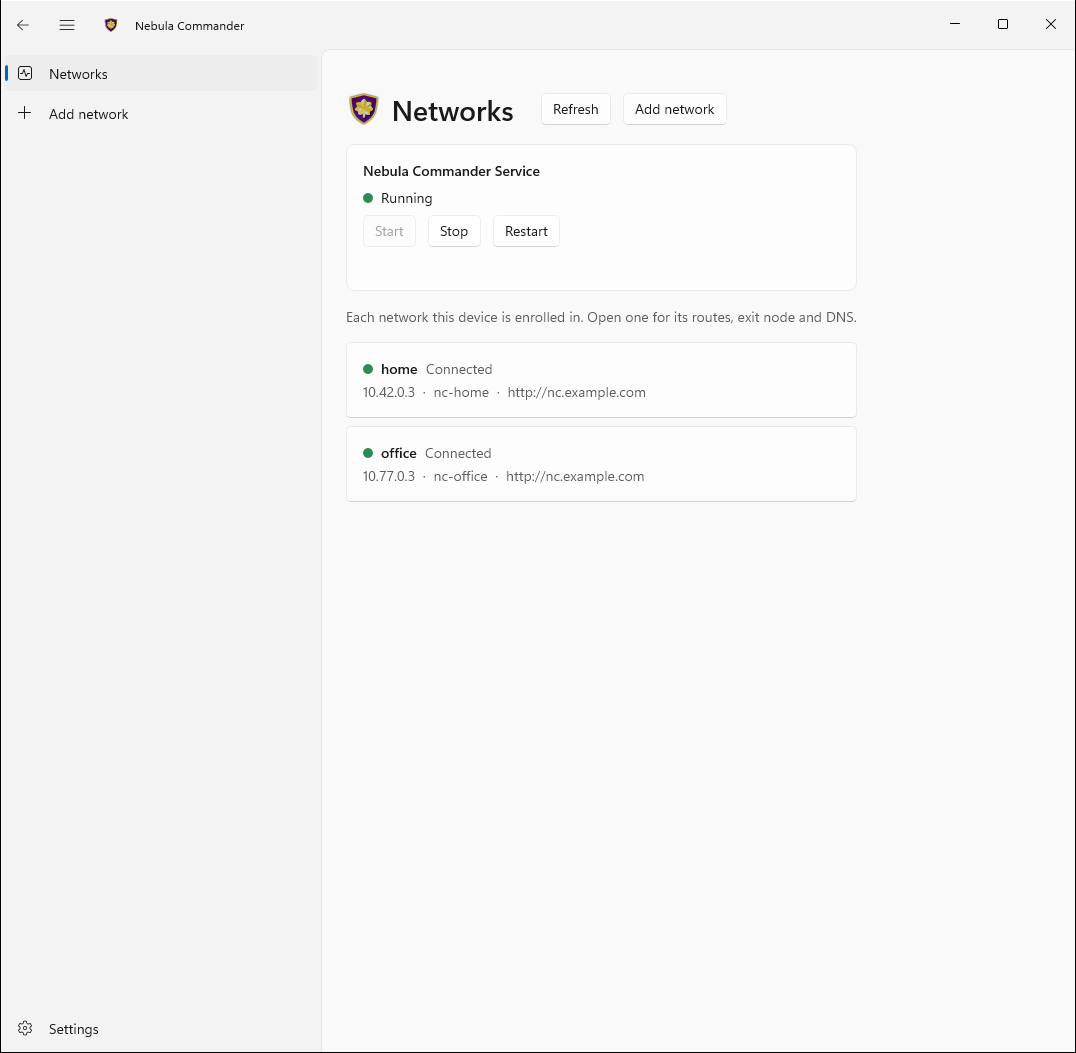
On Windows, Nebula Commander (WinUI 3) is a native windowed app for a background Windows Service (NebulaCommanderService). The service does the actual work (polling for config and certs, running Nebula, applying split-horizon DNS) as LocalSystem.
Anyone can view; only administrators can change. Run normally, the app is view-only: status, routes and config are visible to every user. Enrolling, changing settings, accepting routes or exit nodes, installing/updating Nebula, and starting/stopping the service all require an elevated administrator. Use the Relaunch as administrator bar at the top of the app (or press Alt+R; one UAC prompt), or start it with Run as administrator. The service enforces this itself on every change, so other users on a shared PC can’t re-point or stop your tunnel.
The app and service are installed together by the MSI installer. The app isn’t designed to run without it: only the MSI registers the service (there’s no CLI install/remove subcommand for it), so a standalone app with no service shows Status as unreachable.
Where state lives
Everything lives in %ProgramData%\nebula-commander\, which only SYSTEM and Administrators can open. The app never touches it directly; it asks the service over a local named pipe.
| What | Where |
|---|---|
| Device tokens | tokens\<id>.bin, one per network (DPAPI-encrypted) |
| Settings | settings.json, written by the service: every network’s server and accepted routes, plus the device-wide settings |
| Nebula config, certs, and log | networks\<id>\, one folder per network: config.yaml (includes the node’s private key), certificates, nebula.log |
| Nebula itself | nebula\, installed and updated by the service |
<id> is the network’s id on this device, shown by ncclient networks list. Installs from before v0.8.0 kept one token.bin and the config directly in this folder; the service moves them into this layout on its first start.
The service’s own messages go to the Windows Application event log.
Enroll
- Open Nebula Commander from the Start Menu.
- Click Add network in the side bar, and enter the server URL and the one-time code from Nebula Commander (Nodes → open the node → Enroll).
This needs the app running as administrator. The service makes the enrollment request itself, stores the token, and starts the network right away instead of waiting for the next interval.
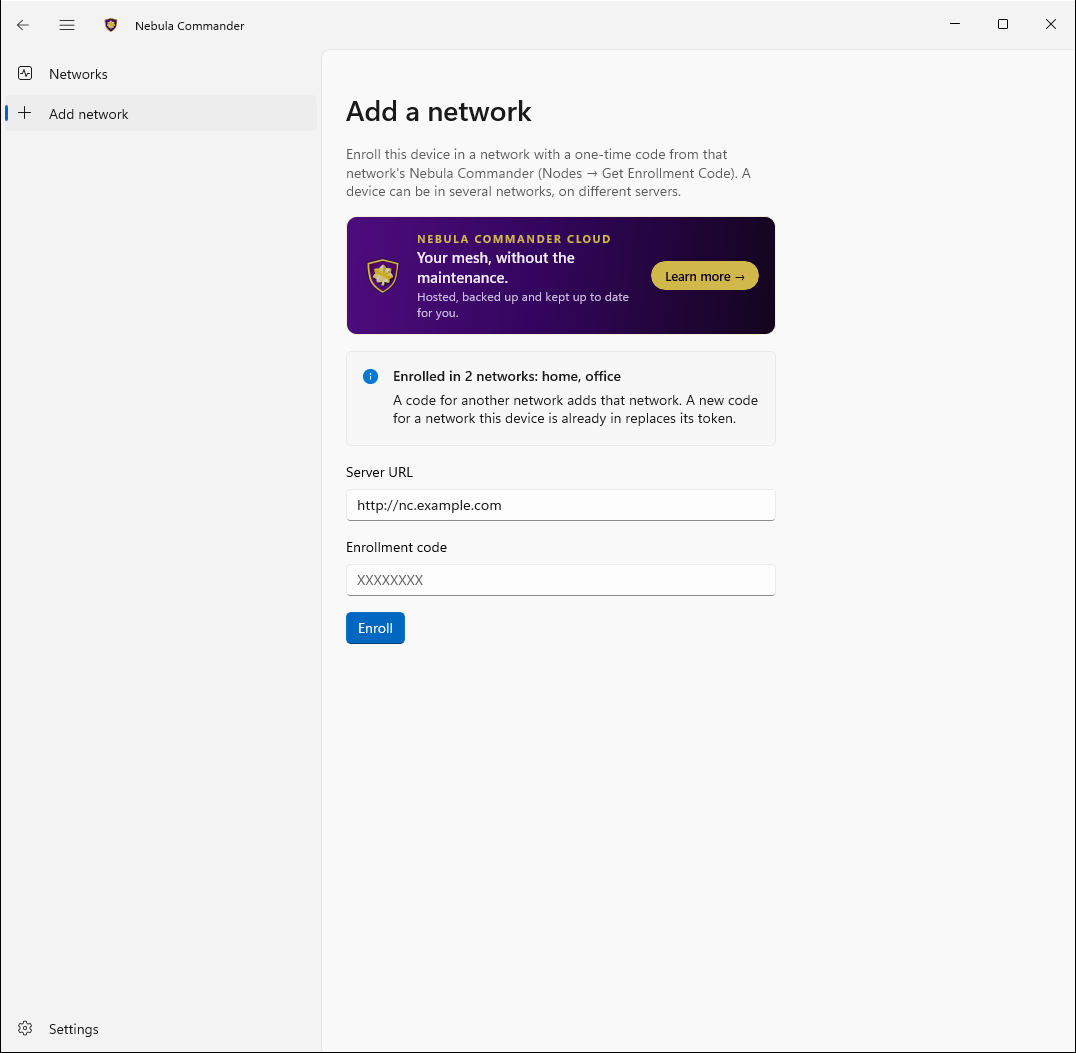
To join another network, use Add network again with that network’s code. One device can be in several networks, on different servers if needed. See Several networks on one device.
Don’t enroll with ncclient enroll from a terminal on an MSI install. The plain CLI writes to a per-user location the service never reads.
Using the app
The side bar has Networks and Add network, with Settings pinned at the bottom. The app follows the Windows light/dark app theme.
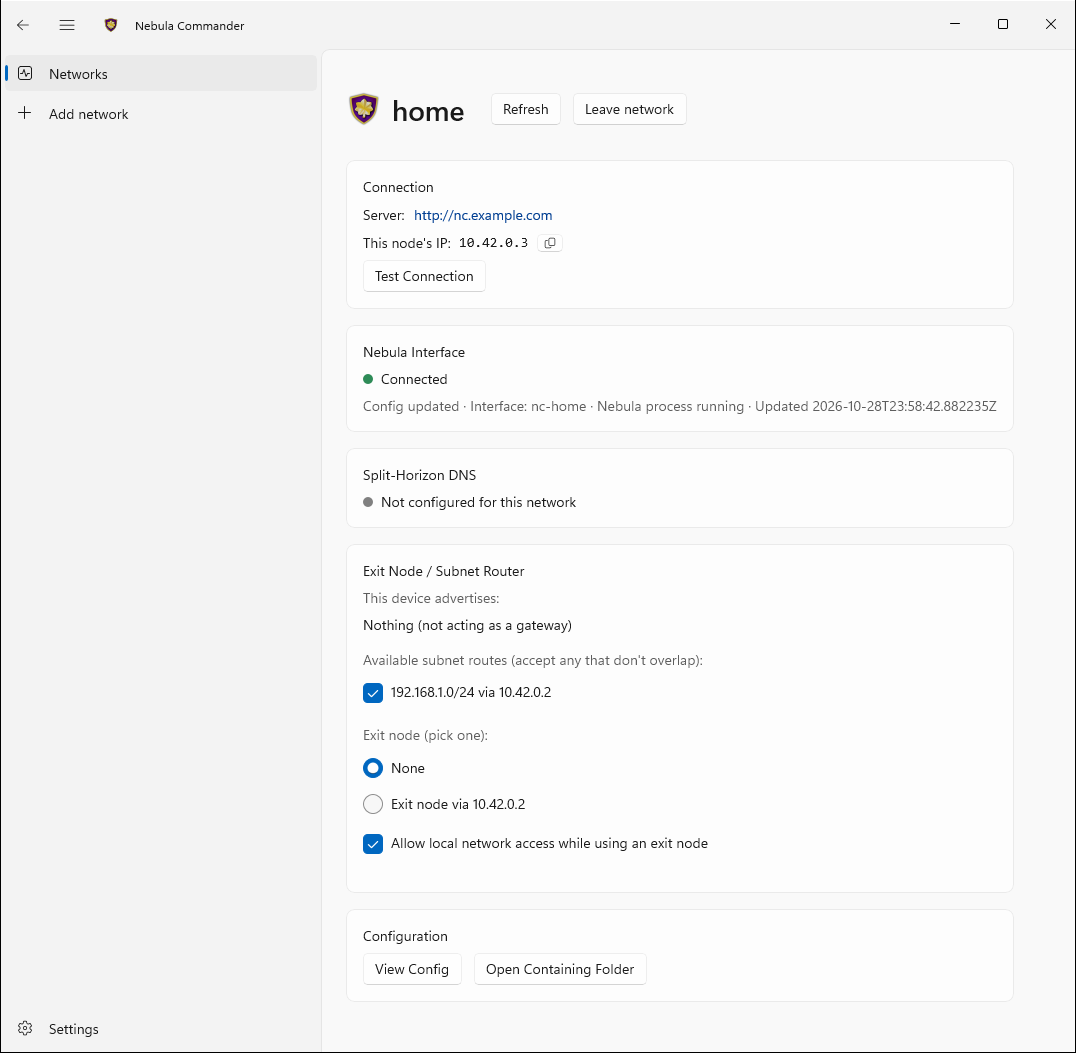
Networks: the Nebula Commander Service card (state and Start/Stop/Restart), then one entry per network this device is enrolled in. Click a network to open its page, which has one card each for:
- Connection: the server URL, This node’s IP in that network, and a Test Connection button.
- Nebula Interface: connected/error, the interface name, whether the Nebula process is running, and when the service last updated.
- Split-Horizon DNS: active or inactive for this network.
- Exit Node / Subnet Router: what this device advertises, plus checkboxes for offered subnet routes and a picker for offered exit nodes.
- Configuration: View Config (the node’s private key is shown as
<redacted>) and Open Containing Folder (administrator only).
Use Refresh to update the page right away, and Leave network to remove the network from this device.
Add network: enroll in a network with a server URL and code.
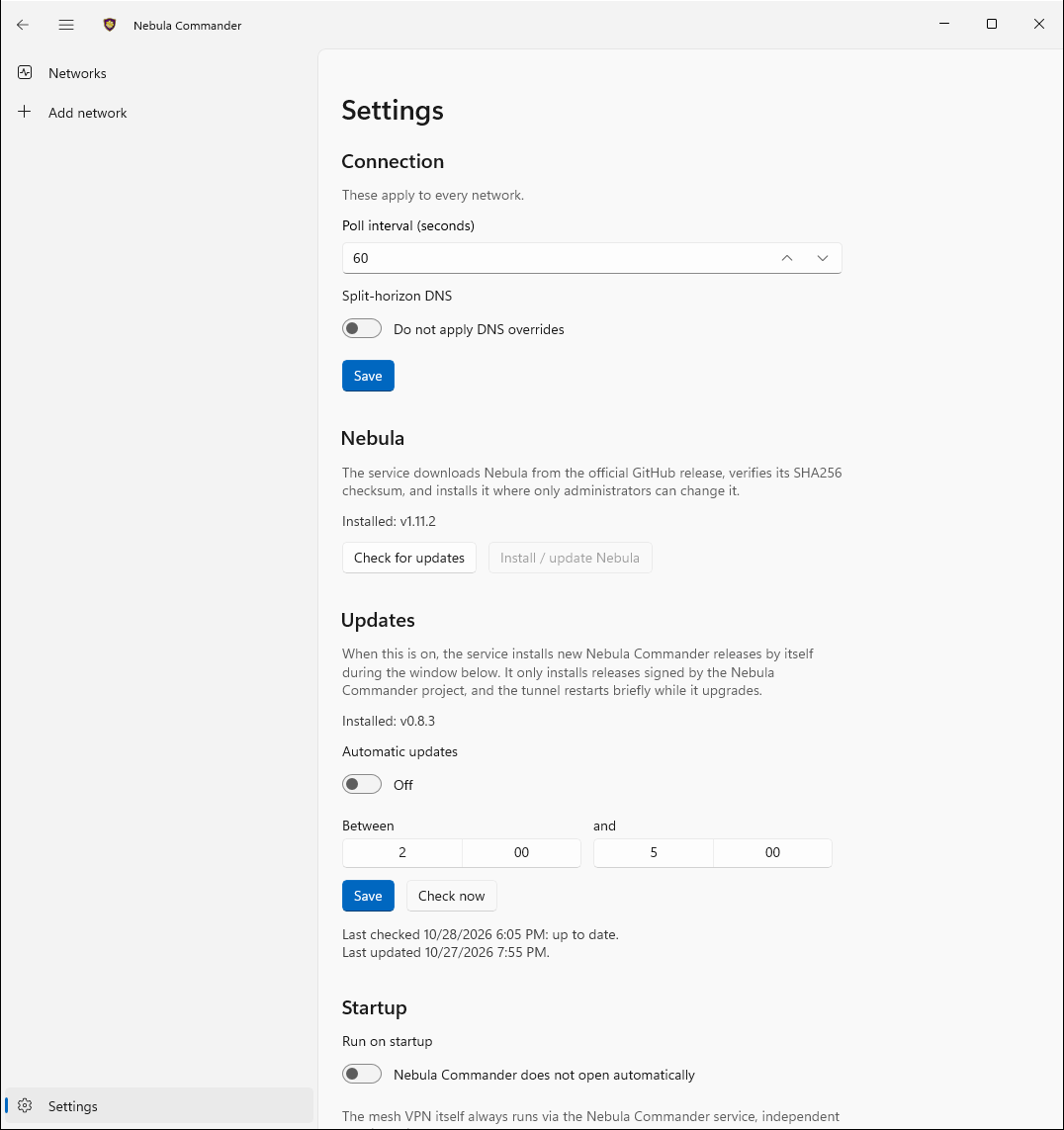
Settings: poll interval and Split-horizon DNS, which apply to every network. Under Nebula you can see the installed Nebula version, Check for updates against Nebula’s GitHub releases, and Install / update Nebula: the service downloads the official release, verifies its SHA256 checksum, and installs the whole archive (
nebula.exe,nebula-cert.exe, wintun) itself. The service installs Nebula automatically on first start, and there’s no custom Nebula path. Under Startup, Run on startup opens the app to the tray when you sign in.
| A network’s page | Settings |
|---|---|
 |  |
Closing the window minimizes it to the tray rather than exiting. Use the tray icon’s Open Nebula Commander item to bring it back, or Exit to quit the app. The service keeps running either way: it starts automatically at boot, whether or not the app is open or anyone is signed in.
To control the service without the app, use Services (services.msc) or an elevated prompt (non-administrators can only query it):
sc.exe query NebulaCommanderService
Restart-Service NebulaCommanderService
Subnet routes and exit nodes
Open the network on the Networks page and use the checkboxes and the exit-node picker on its Exit Node / Subnet Router card. A device has one exit node across all its networks: picking one in a network replaces one in use in another, and the card warns you when that would happen. The service applies changes right away. See Subnet routers and exit nodes for how routes are offered.
Split-horizon DNS
Turn on Split-horizon DNS in Settings. The service applies it with NRPT rules for the network’s domain and removes them when turned off or when the service stops. The Split-Horizon DNS card on each network’s page shows whether it’s active for that network.
Re-enroll
Open Add network and enroll again with a new code for the same node on the same server. This replaces that network’s token and makes the service poll immediately. Nothing needs restarting.
If you’re moving the device to a different server, enrolling adds the new server’s network next to the old one. Open the old network on the Networks page and click Leave network.
Updates
The service can install new releases by itself during a daily window: Settings → Updates (as administrator), or ncclient auto-update enable from an elevated prompt. Check now looks for a new release; when one is out, Install now installs it right away with a progress bar, and Restart App reopens the app on the new version. See Automatic updates.
Troubleshooting
- The Networks page shows the service as unreachable: the MSI’s service isn’t installed or isn’t running. Start it from the Networks page or
services.msc, or reinstall the MSI. - “Administrator required” when changing something: relaunch the app as administrator (the bar at the top of the window).
- Nebula Interface shows an error: as administrator, check that network’s
nebula.logunder%ProgramData%\nebula-commander\networks\(Open Containing Folder on the network’s page gets you there). - The app says Nebula isn’t installed: the service’s first-run download failed (e.g. offline). Use Settings → Install / update Nebula as administrator.
- Enrolled from a terminal and the app still says not enrolled: the CLI wrote a per-user token. Enroll from the app instead.
Run from source
From client/windows-app/:
dotnet build # or: dotnet run
Running this way still expects a real installed-and-running NebulaCommanderService to control (the app checks that the control pipe really belongs to that service). If it isn’t installed or running, the Networks page says so rather than failing.
Build (self-contained publish)
cd client/windows-app
dotnet publish -c Release -r win-x64
Output: bin\Release\net10.0-windows*\win-x64\publish\NebulaCommanderApp.exe, a single self-contained file (it bundles the .NET runtime and Windows App SDK, so the target machine needs no prerequisites). See client/windows-app/README.md for details.
For the background service, see client/windows/README.md and Development: Manual builds. The Windows MSI installer installs and registers all three: ncclient.exe, NebulaCommanderApp.exe, and ncclient-service.exe.